AutoCAD Commands Cheat Sheet (+ Top 20)
AutoCAD commands by category with full name, alias and what each does: draw, modify, layers, dimensions, blocks and inquiry. Plus the 20 commands to learn first and which ones free CADCraft supports.
 CADCraft AI Editorial
Short answer: type a command's full name or its alias at the command line and press Enter: OFFSET or O, TRIM or TR, DIMLINEAR or DLI. Answer the prompts, choosing options by typing the capital letters shown in [brackets]. Press Enter on an empty line to repeat the command, and Esc to stop it. Below, the commands are grouped by job. Each row gives the full name, alias, what it does, and whether the free CADCraft app supports it. The last section lists the 20 to learn first.
cadcraft.org is an independent guide, not the official site. The CADCraft column was checked against the command catalogue of CADCraft 0.8.0 (cadcraft-cli commands), not taken from marketing pages.
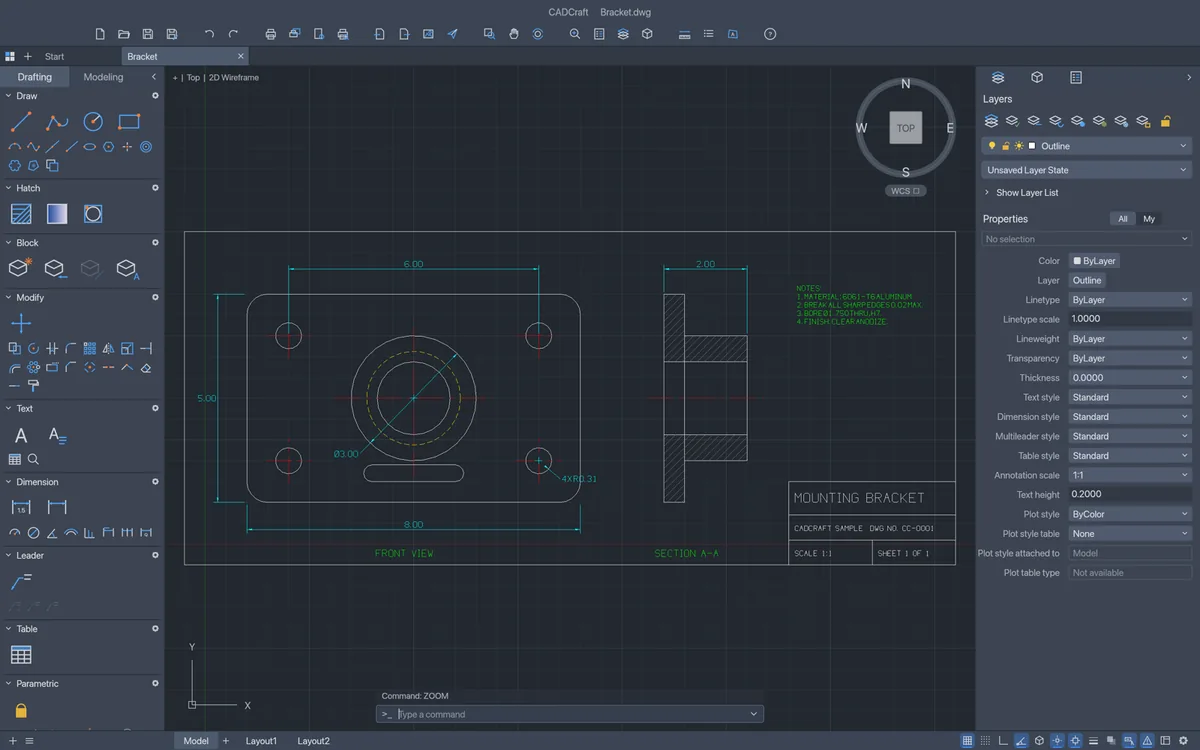
Draw commands
| Command | Alias | What it does | CADCraft |
|---|---|---|---|
| LINE | L | Straight segments, each a separate object | ✓ |
| PLINE | PL | One object of lines and arcs, with widths | ✓ |
| CIRCLE | C | Centre/radius, diameter, 2P, 3P, TTR, TTT | ✓ |
| ARC | A | Arc by three points or centre/angle options | ✓ |
| RECTANG | REC | Rectangle, optionally filleted or chamfered | ✓ |
| POLYGON | POL | Regular polygon, inscribed or circumscribed | ✓ |
| ELLIPSE | EL | Ellipse or elliptical arc | ✓ |
| SPLINE | SPL | Smooth curve by fit or control points | ✓ |
| XLINE / RAY | XL / — | Infinite / one-way construction lines | ✓ |
| POINT | PO | Point object (style from PTYPE) | ✓ |
| DONUT | DO | Filled ring | ✓ |
| REVCLOUD | — | Revision cloud | ✓ |
| WIPEOUT | — | Mask that hides what's behind it | ✓ |
| HATCH | H | Pattern, solid or gradient fill | ✓ |
| BOUNDARY | BO | Closed polyline from a picked area | ✓ |
| TEXT | DT | Single-line text | ✓ |
| MTEXT | T, MT | Paragraph text | ✓ |
| TABLE | TB | Table with rows and columns | ✓ |
| MLINE | ML | Parallel multilines | ✓ |
Modify commands
| Command | Alias | What it does | CADCraft |
|---|---|---|---|
| MOVE | M | Move by base point and second point | ✓ |
| COPY | CO, CP | Copy, repeatedly until Enter | ✓ |
| ROTATE | RO | Rotate around a base point | ✓ |
| SCALE | SC | Resize by factor or reference | ✓ |
| MIRROR | MI | Mirror across a line, keep or delete the source | ✓ |
| STRETCH | S | Move the vertices inside a crossing window | ✓ |
| OFFSET | O | Parallel copy at a distance or through a point | ✓ |
| TRIM | TR | Cut back to edges | ✓ |
| EXTEND | EX | Lengthen to edges | ✓ |
| FILLET | F | Round corner (radius 0 makes a sharp corner) | ✓ |
| CHAMFER | CHA | Bevelled corner | ✓ |
| BREAK | BR | Remove part of an object | ✓ (and BREAKATPOINT) |
| JOIN | J | Join collinear or end-to-end objects | ✓ |
| EXPLODE | X | Split blocks, polylines, dimensions into pieces | ✓ |
| ARRAY | AR | Rectangular, polar or path copies | ✓ |
| PEDIT | PE | Edit polylines (join, width, close) | ✓ |
| LENGTHEN | LEN | Change length by delta, percent or total | ✓ |
| ALIGN | AL | Move, rotate and scale onto reference points | ✓ |
| ERASE | E | Delete | ✓ |
| OVERKILL | — | Delete duplicate and overlapping objects | ✓ |
| MATCHPROP | MA | Copy layer, colour, linetype and more | ✓ |
Layer commands
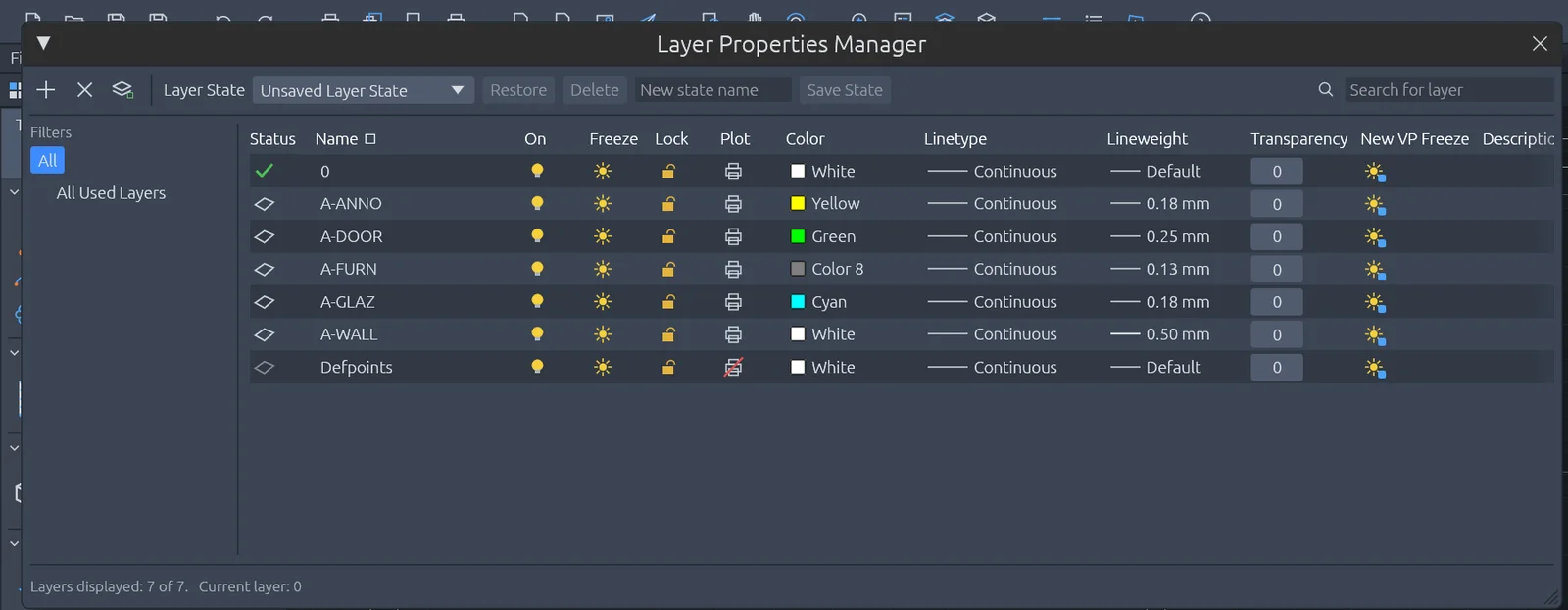
LA opens the Layer Properties Manager. Here it shows the layers of CADCraft’s sample floor plan.
| Command | Alias | What it does | CADCraft |
|---|---|---|---|
| LAYER | LA | Layer Properties Manager | ✓ |
| -LAYER | -LA | Same options at the command line | ✓ |
| LAYMCUR | — | Make the picked object's layer current | ✓ |
| LAYCUR | — | Move objects to the current layer | ✓ |
| LAYMCH | — | Move objects to a picked object's layer | ✓ |
| LAYISO / LAYUNISO | — | Isolate layers / restore them | ✓ |
| LAYOFF / LAYON | — | Turn a picked layer off / all layers on | ✓ |
| LAYFRZ / LAYTHW | — | Freeze a picked layer / thaw all | ✓ |
| LAYLCK / LAYULK | — | Lock / unlock a picked layer | ✓ |
| LAYMRG | — | Merge layers into one | ✓ |
| LAYDEL | — | Delete a layer and everything on it | ✓ |
| LAYERP | — | Undo the last layer setting change | ✓ |
| LAYWALK | — | Step through layers one at a time | ✗ |
| COPYTOLAYER | — | Copy objects onto another layer | ✗ (COPY, then LAYMCH) |
Dimension commands
| Command | Alias | What it does | CADCraft |
|---|---|---|---|
| DIMLINEAR | DLI | Horizontal or vertical dimension | ✓ |
| DIMALIGNED | DAL | Dimension parallel to the object | ✓ |
| DIMANGULAR | DAN | Angle between lines or on an arc | ✓ |
| DIMRADIUS | DRA | Radius | ✓ |
| DIMDIAMETER | DDI | Diameter | ✓ |
| DIMARC | DAR | Arc length | ✓ |
| DIMORDINATE | DOR | X or Y datum dimension | ✓ |
| DIMCONTINUE | DCO | Chain from the last dimension | ✓ |
| DIMBASELINE | DBA | Stack from a common baseline | ✓ |
| QDIM | — | Dimension many objects at once | ✓ |
| DIM | — | One command for every dimension type | ✓ |
| DIMSPACE | — | Even out spacing between dimensions | ✓ |
| DIMBREAK | — | Break dimension lines where objects cross | ✓ |
| DIMSTYLE | D | Dimension Style Manager | ✓ |
| DIMOVERRIDE | DOV | Override one dimension's variables | ✓ |
| MLEADER | MLD | Multileader | ✓ |
| QLEADER | LE | Quick leader | ✗ (LEADER / MLEADER instead) |
Block commands
| Command | Alias | What it does | CADCraft |
|---|---|---|---|
| BLOCK | B | Define a block from objects | ✓ |
| INSERT | I | Insert a block | ✓ |
| WBLOCK | W | Save objects or a block as a new drawing file | ✓ |
| BEDIT | BE | Block Editor | ✓ |
| ATTDEF | ATT | Define an attribute | ✓ |
| ATTEDIT | ATE | Edit attribute values | ✓ |
| ATTSYNC | — | Update references after editing attributes | ✓ |
| BATTMAN | — | Block Attribute Manager | ✓ |
| BASE | — | Insertion base point of the drawing | ✓ |
| REFEDIT | — | Edit a block or reference in place | ✓ |
| XATTACH | XA | Attach a DWG as an external reference | ✓ |
| XCLIP | XC | Clip an external reference | ✗ |
| PURGE | PU | Remove unused blocks, layers, styles | ✓ |
Dynamic blocks are partly supported: CADCraft reads their parameters and lets you switch visibility states, but it can't drag distances or positions yet.
Inquiry (measuring and checking) commands
| Command | Alias | What it does | CADCraft |
|---|---|---|---|
| DIST | DI | Distance and angle between two points | ✓ |
| MEASUREGEOM | MEA | Distance, radius, angle or area in one command | ✓ (type the full name; MEA isn't an alias, and ME is MEASURE) |
| AREA | AA | Area and perimeter | ✓ |
| ID | — | Coordinates of a point | ✓ |
| LIST | LI | Everything about the selected objects | ✓ (LS too) |
| MASSPROP | — | Properties of regions | ✓ (regions; no 3D solids) |
| COUNT | — | Count blocks or objects like a picked one | ✓ |
| FIND | — | Find and replace text | ✓ |
| QSELECT | QS | Select by property | ✓ |
| TIME | — | Time spent in the drawing | ✓ |
| STATUS | — | Drawing status summary | ✓ |
| UNITS | UN | Units and precision | ✓ |
The output reads like AutoCAD's. Here is what CADCraft 0.8.0 printed for ID 12.5,40 and DI 0,0 30,40:
X = 12.5000     Y = 40.0000     Z = 0.0000
Distance = 50.0000,  Angle in XY Plane = 53,  Angle from XY Plane = 0
Delta X = 30.0000,  Delta Y = 40.0000,   Delta Z = 0.0000
So the habit of checking a drawing with ID and DIST before you trust it carries over.
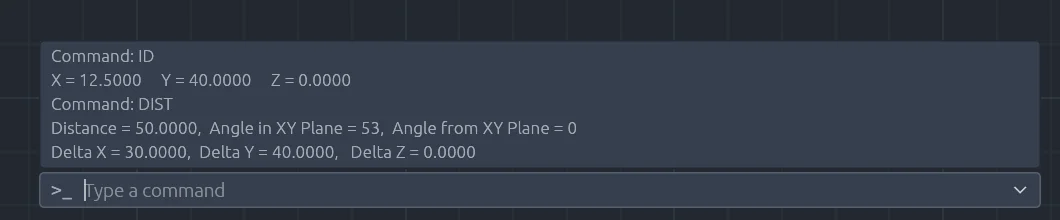
The same two commands in the web build of CADCraft 0.8.0, with the history expanded (F2).
Gaps worth knowing before you switch
CADCraft is a 2D drafting app. The project's own parity documents describe 3D modelling as future work. So UCS, EXTRUDE, PRESSPULL, SECTIONPLANE and the rest of the 3D toolset aren't in the catalogue. Neither are PDF underlays (PDFATTACH) or attaching raster images: an ATTACH command exists but answers "not available yet". If a workflow depends on these, keep AutoCAD for that part. Open-source CAD compared lists tools that do 3D.
The 20 commands to learn first
If you're new to AutoCAD or to CADCraft, these 20 do most of the everyday 2D work. Learn the alias with the name. After a week the alias is all you'll type.
| # | Command | Alias | Why it's in the top 20 |
|---|---|---|---|
| 1 | LINE | L | Most drawings start here |
| 2 | PLINE | PL | Closed outlines you can offset and hatch |
| 3 | CIRCLE | C | Holes, columns, fixtures |
| 4 | RECTANG | REC | Frames, plates, rooms in two clicks |
| 5 | OFFSET | O | Walls, margins, parallel edges |
| 6 | TRIM | TR | Clean up intersections |
| 7 | EXTEND | EX | Close gaps to an edge |
| 8 | FILLET | F | Rounded corners; radius 0 makes clean square ones |
| 9 | MOVE | M | Put things where they belong |
| 10 | COPY | CO | Repeat elements |
| 11 | ROTATE | RO | Turn objects to angle |
| 12 | MIRROR | MI | Symmetric parts in half the time |
| 13 | ERASE | E | Delete (or select and press Delete) |
| 14 | LAYER | LA | Keep walls, text and dimensions apart |
| 15 | MATCHPROP | MA | Fix properties by example |
| 16 | HATCH | H | Sections, materials, fills |
| 17 | DIMLINEAR | DLI | Show the sizes |
| 18 | MTEXT | T | Notes and labels |
| 19 | ZOOM | Z | Z E gets you back to the whole drawing |
| 20 | UNDO | U | Ctrl+Z, or U at the command line |
All 20 work in CADCraft with the same names and aliases. You can try them in the browser at /online without installing anything, or get the desktop app.
FAQ
What is the difference between an AutoCAD command and a shortcut?
The command is the full name, such as OFFSET. The shortcut (alias) is the short form that starts it, such as O. Both are typed at the command line and confirmed with Enter or Space. Some commands also have a dash form (-LAYER, -INSERT) that asks its questions at the command line instead of opening a dialog.
Which AutoCAD commands should a beginner learn first?
LINE, PLINE, CIRCLE, RECTANG, MOVE, COPY, ROTATE, OFFSET, TRIM, EXTEND, FILLET, MIRROR, ERASE, LAYER, MATCHPROP, HATCH, DIMLINEAR, MTEXT, ZOOM and UNDO. Together they cover most everyday 2D drafting. The full list with aliases is at the end of the article.
Does CADCraft support AutoCAD commands?
CADCraft 0.8.0 has 426 commands and uses AutoCAD’s names and most of its aliases for the 2D drafting set: draw, modify, layers, dimensions, blocks and inquiry. It has no UCS command, no 3D modelling commands such as EXTRUDE, and no XCLIP, LAYWALK, COPYTOLAYER or QLEADER.
How do I see every command CADCraft has?
Press F1 in the app for the command list. From a terminal, cadcraft-cli commands prints the whole catalogue as JSON, and cadcraft-cli commands dim filters it to commands whose id, label or alias contains “dim”.
Related
- AutoCAD shortcuts cheat sheet: Ctrl and F-keys, object snaps and aliases
- CADCraft vs AutoCAD from the command line
- Open-source CAD compared