AutoCAD AI Agent: Connect Claude to a Free CAD App with MCP
How to let an AI agent like Claude draw in AutoCAD-style CAD: set up CADCraft’s free MCP server in Claude Code or Claude Desktop, watch it draw live, and the checks that catch its mistakes, with a real session’s output.
 CADCraft AI Editorial
Short answer: AutoCAD doesn't come with an AI agent you can plug into Claude. CADCraft, a free open-source CAD program with AutoCAD-style commands, does: it ships an MCP server (cadcraft-cli mcp). Add it to Claude Code with one command, ask for a drawing in plain English, and the agent types the commands, checks the result and saves DXF, DWG or PDF.
claude mcp add cadcraft -- cadcraft-cli mcp
The setup takes a minute. Most of this page is about the part that decides whether you can trust the result: making the agent check what it drew, with two real mistakes from a real session.
cadcraft.org is an independent guide, not the official site and not affiliated with Autodesk. CADCraft is the ArtCraft team's open-source CAD program (getartcraft.com/apps/cadcraft). Everything below was run with cadcraft-cli 0.13.0.
What the agent can do
MCP (Model Context Protocol) is the standard way for AI clients like Claude Code and Claude Desktop to call outside tools. CADCraft's server gives the model 12 tools:
| Tool | What it's for |
|---|---|
command_line | Type at the command line like a person: line 0,0 @100,0, offset 5 |
script | Run several lines at once, like a .scr file |
execute | Run any command with JSON parameters, never opening a dialog |
list_commands | Look up a command's id and JSON parameters |
inspect_drawing | Counts, extents, layers, styles, blocks, layouts |
query_entities | Find objects by type, layer or window, with handles and exact geometry |
find_text | Read the text in a drawing |
render | A PNG of the drawing (or part of it) that the model can look at |
new_drawing, open, save, cancel | Files, exporting (save to .pdf, .svg or .png), and Escape |
execute also reaches analysis commands such as shapes, which reports the area, perimeter and centroid of closed shapes, and loops, which finds closed outlines made of loose lines and arcs.
CADCraft doesn't include a language model. It's the hands and eyes; the model is whatever your MCP client uses.
Set it up
1. Install CADCraft. The download page has the installers. The Windows and Linux packages include cadcraft-cli; on macOS it's a separate cadcraft-cli-<ver>-macos-universal.zip on the release page. Check it's on your PATH:
cadcraft-cli --version
2. Add it to your client. For Claude Code:
claude mcp add cadcraft -- cadcraft-cli mcp
For Claude Desktop and other clients configured with JSON, add this to the client's MCP config and restart the client:
{ "mcpServers": { "cadcraft": { "command": "cadcraft-cli", "args": ["mcp"] } } }
3. Choose headless or bridged.
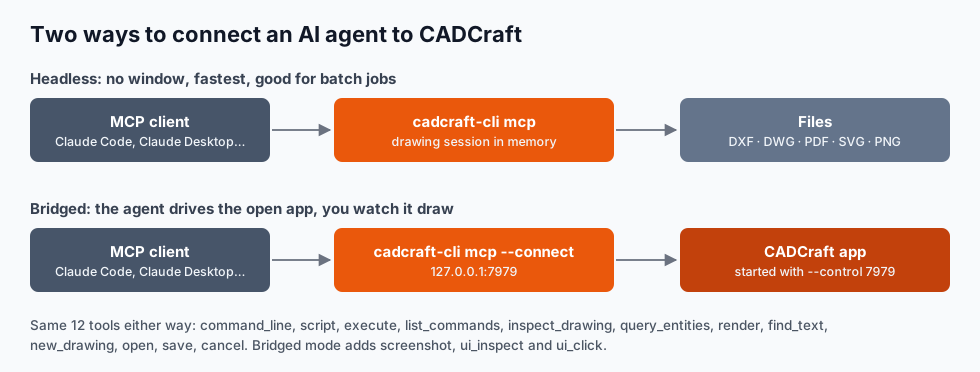
- Headless (the config above) runs a drawing session in memory with no window. It's fast and suits batch jobs: "make a DXF of this plate in six sizes".
- Bridged drives the desktop app so you can watch it draw and take over with the mouse. Start CADCraft with
--control 7979, and point the client at it:
{
  "mcpServers": {
    "cadcraft": {
      "command": "cadcraft-cli",
      "args": ["mcp", "--connect", "127.0.0.1:7979", "--launch"]
    }
  }
}
MCP clients usually start their servers before you open the app. --launch (macOS) opens CADCraft with that port when the first tool call finds nothing; --lazy just waits for you to open it. With neither flag, the bridge fails to start when the app isn't running, rather than quietly editing a separate drawing.
A real session: a flange in four steps
We asked for this, in plain English:
New metric drawing. A flange: outer diameter 150, bore 80. Six 12 mm bolt holes equally spaced on a 115 pitch circle. Part outline on layer PART, holes on HOLES in red, the pitch circle on CENTER in green, dimensions on DIMS. Dimension both diameters and add the note "6X Ø12 ON Ø115 PCD". Then check it and save a DXF.
The tool calls were written by Claude (the model that writes this site's articles) and sent to cadcraft-cli mcp 0.13.0 over stdio. The plan: new_drawing {"metric": true}, a script with the circles and layers, one hole drawn at (57.5, 0), then execute with arraypolar to make the other five, then the dimensions and note. Here's the result, rendered by the render tool:
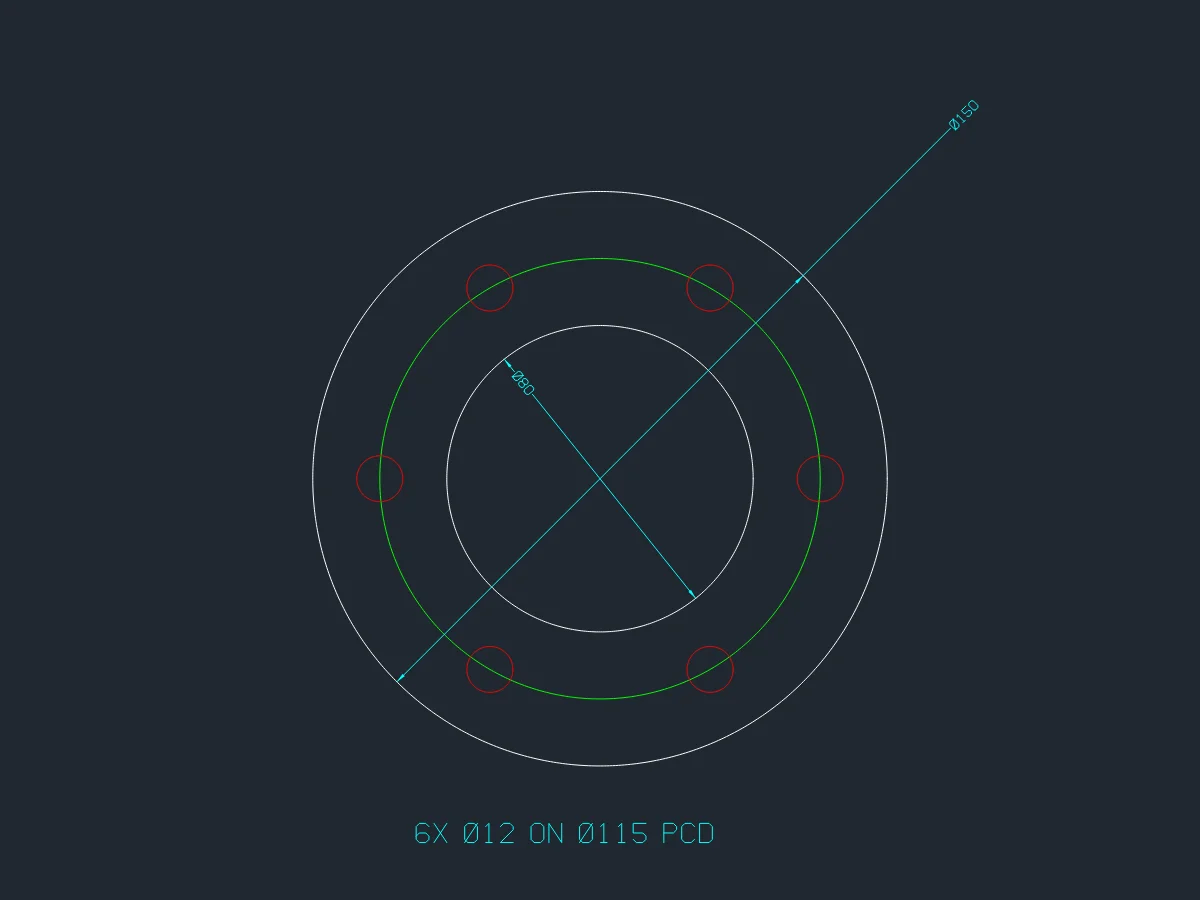
It looks right. Two things went wrong on the way, and neither showed in a picture.
Mistake 1: six holes in the picture, zero circles in the drawing
The first arraypolar call used the defaults:
{
  "command": "arraypolar",
  "params": { "handles": ["103"], "center": [0, 0], "count": 6 }
}
It replied {"associative": true, "created": 5, "handle": "10B"}. The render showed six holes. But query_entities {"type": "Circle", "layer": "HOLES"} returned 0. Everything on HOLES was one Block Reference. Like AutoCAD, CADCraft makes arrays associative by default: the six holes are one array object, not six circles.
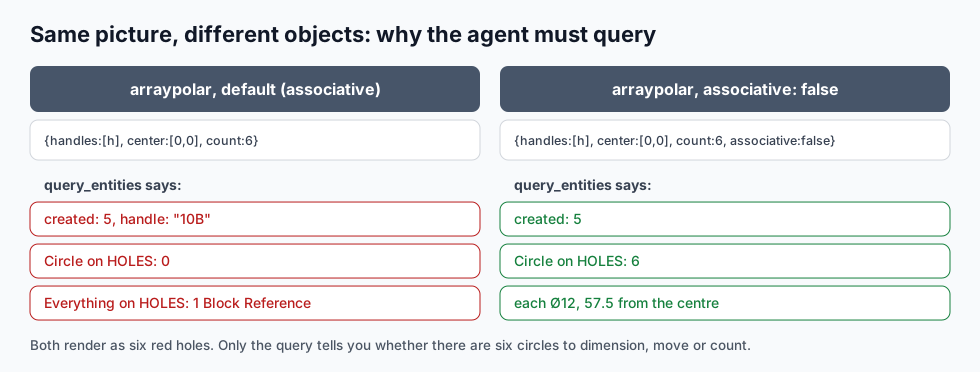
That matters if the next step is "dimension each hole" or "count the holes for the BOM". The fix was to undo and pass "associative": false. The query then listed six circles, each Ø12 and exactly 57.5 from the centre: (57.5, 0), (28.75, 49.796), (−28.75, 49.796), (−57.5, 0), (−28.75, −49.796), (28.75, −49.796).
Mistake 2: a pick point that landed on the wrong object
The agent dimensioned the bore with dimdiameter -28.28,-28.28 …, a point on the Ø80 circle at 225°. CADCraft answered Object selected is not a circle or arc. The reason: the Ø150 diameter dimension it had just drawn runs from 45° to 225° straight through that point, so the pick found the dimension, not the circle.
Two lessons. The tool result didn't set isError, because the command ran and only complained at its prompt, so the agent has to read the output text, not just the status. And the script kept going: the prompt ate the next lines, so the note was never written. inspect_drawing caught it (Circle 9, Dimension 1, no Text). Picking at (−40, 0) instead, where nothing else crosses, fixed it.
The checks that proved it
After the fixes:
inspect_drawing:Circle 9, Dimension 2, Text 1on layersPART,CENTER,HOLES,DIMS.execute shapes {"layer": "PART"}: two circles, areas 17,671.46 and 5,026.55 mm², so the flange face is 12,644.91 mm² before the bolt holes.save {"path": "flange.dxf"}: a 20,819-byte DXF, 2018 format.
How to prompt a CAD agent
- Give every number. Sizes, positions, counts, units. "A flange for a 2-inch pipe" makes the model guess.
- Name the layers and colours. You'll want them when you edit the drawing later.
- Ask for the check in the prompt. "Then list the circles on HOLES with their centres and diameters" makes verification part of the job.
- Ask for JSON commands when objects are picked.
executewith handles is more reliable than clicking at coordinates, which is what went wrong in mistake 2. - Say "metric" at the start.
new_drawing {"metric": true}. An imperial drawing reads150as 150 inches. - Review before it goes to a fabricator. The agent draws what you said. Tolerances, threads and finishes aren't on the drawing unless you asked.
What an AI agent in CAD is good for (today)
Good: fully specified 2D parts (plates, flanges, gaskets, brackets), repeating a drawing in several sizes, cleaning up DXF files (layers, purging, renaming), reading a drawing and answering questions ("what's the area of every closed room outline on A-WALL?"), and batch exports.
Not yet: design decisions, anything that depends on engineering judgement, and 3D. CADCraft is 2D and pre-alpha; for prompt-to-3D see the parametric-script route in text to CAD.
FAQ
Can AI control AutoCAD?
AutoCAD itself has no official MCP server for AI agents; people script it with AutoLISP or its APIs. CADCraft, a free open-source program with AutoCAD-style commands, ships an MCP server, so Claude or another MCP client can type commands, run JSON commands, query the drawing and render it to PNG.
How do I connect CADCraft to Claude?
Install CADCraft (it includes cadcraft-cli; on macOS the CLI is a separate zip). In Claude Code run: claude mcp add cadcraft -- cadcraft-cli mcp. For Claude Desktop, add {"command": "cadcraft-cli", "args": ["mcp"]} under mcpServers in its config file and restart it.
How do I watch the AI draw in the CADCraft window?
Start the desktop app with --control 7979 and give the MCP client cadcraft-cli mcp --connect 127.0.0.1:7979. Add --launch (macOS) or --lazy if the client starts before the app is open.
Is the CADCraft MCP server free?
Yes. CADCraft and its MCP server are open source under MIT OR Apache-2.0, with no account. You still need an AI client and model to drive it, which may have their own costs.
Related
- Text to CAD: what actually works today: the three routes, and a runnable Python MCP example
- CAD in Rust: how CADCraft is built, and why every action is a command
- AutoCAD commands cheat sheet: the commands an agent types