AutoCAD Layers: Off vs Freeze vs Lock Explained
What turning an AutoCAD layer off, freezing it and locking it actually do: visibility, plotting, selection, snaps, ERASE ALL, regeneration and per-viewport freezing, plus the layer tools that save the most time.
 CADCraft AI Editorial
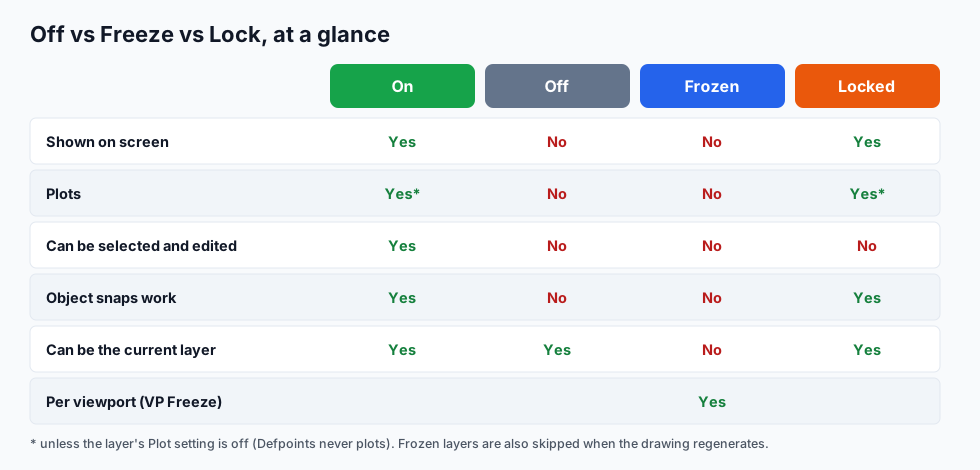
Short answer: all three are switches on a layer. Off hides it and stops it plotting. Freeze does the same and also takes it out of regeneration, and it can be done per viewport. Lock keeps it visible and printable but stops you selecting or changing it. Use Off for a quick hide, Freeze for things you won't need for a while or that belong on another sheet, and Lock for reference geometry you draw over.
The same switches, with the same icons (light bulb, padlock, sun/snowflake), are in the free CADCraft app. Where it behaves differently from AutoCAD, this page says so.
cadcraft.org is an independent guide, not affiliated with Autodesk. CADCraft is made by the ArtCraft team: see getartcraft.com/apps/cadcraft. CADCraft details were checked against its 0.13.0 source.
Where the switches are
Open the Layer Properties Manager with LA, or use the layer drop-down on the ribbon (or CADCraft's Layers palette). Each layer row has the three icons:

In CADCraft's layer drop-down the order is bulb, padlock, sun. A frozen layer shows a snowflake, a locked one a closed padlock.
Click an icon to toggle it. That's all most people need. The rest of this page is about choosing the right one.
Off: the quick hide
Turning a layer off hides its objects and keeps them out of plots. It's the switch for "get this out of my way for a minute": hatch while you edit walls, furniture while you dimension.
Things to know:
- ERASE ALL can still delete them in AutoCAD. Selecting with
ALLincludes objects on layers that are off (not frozen). This is the classic way to lose work. CADCraft differs: itsALLselects only visible objects, so off layers are safe there. - The current layer can be off. You'll draw objects you can't see. AutoCAD warns you; it's rarely what you want.
- Zoom Extents in AutoCAD still includes off layers, so you may zoom to empty space. CADCraft's extents leave out both off and frozen layers.
Freeze: hide and forget
Freezing hides the layer and stops it plotting, like Off, and also leaves it out when the drawing regenerates. In big drawings that makes zooming and panning faster. Frozen objects are never selected, not even by ALL.
- You can't freeze the current layer. Make another layer current first. (CADCraft refuses the same way: "cannot freeze the current layer". If you set a frozen layer current, CADCraft thaws it for you.)
- Thawing may trigger a regeneration in AutoCAD, so it's slower to flip than Off. Don't use Freeze for something you toggle every few seconds.
LAYFRZfreezes the layer of an object you click, andLAYTHWthaws all layers. Same names in CADCraft.
Freeze in one viewport only
This is what Freeze can do and Off can't. On a layout, double-click into a viewport and freeze a layer for that viewport only (the VP Freeze column, or VPLAYER). The model stays the same; each sheet shows different layers.
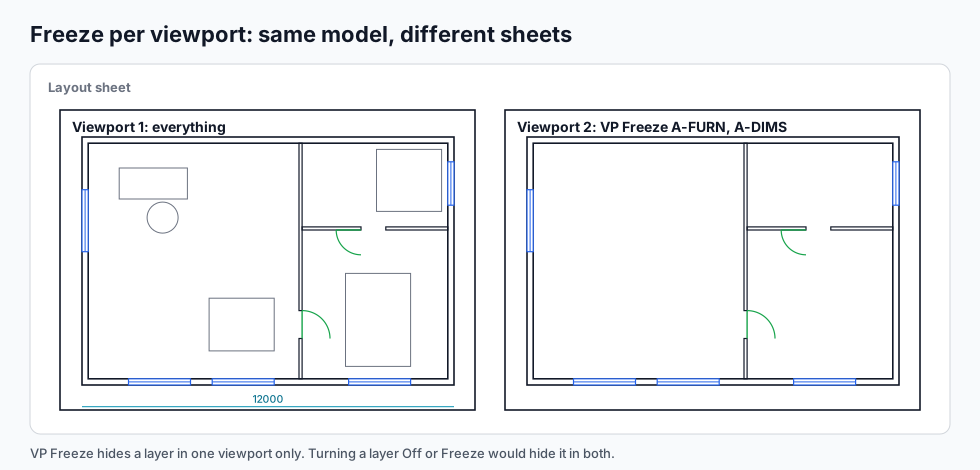
Typical uses: a furniture plan and a dimension plan from the same model, or hiding a north arrow in a detail viewport. New VP Freeze freezes a layer in every viewport you create from now on, which is handy for layers that should only ever appear on one sheet. CADCraft has all three: per-viewport freeze, VPLAYER and freeze-in-new-viewports.
Lock: look, snap, don't touch
A locked layer stays visible and plots normally. You can snap to it, but you can't select its objects for MOVE, ERASE, STRETCH and so on. If you select a mix, AutoCAD and CADCraft skip the locked ones and tell you, for example "2 objects were on a locked layer."
Use it for:
- A survey, site plan or xref'd background you draw on top of.
- Title blocks and borders that keep getting dragged by accident.
- Finished work while you edit something next to it.
AutoCAD fades locked layers (LAYLOCKFADECTL) so you can see what's locked. CADCraft doesn't fade them yet, so check the padlock icon.
The layer tools that save the most time
| Command | What it does |
|---|---|
LAYISO | Isolates the layers of the objects you pick |
LAYUNISO | Undoes the isolation |
LAYOFF | Turns off the layer of each object you click, until Enter |
LAYFRZ / LAYTHW | Freezes the layer of an object you click / thaws every layer |
LAYLCK / LAYULK | Locks / unlocks the layer of an object you click |
LAYON | Turns every layer back on |
LAYMCUR | Makes the layer of the object you click current |
LAYMCH | Moves objects to the layer of another object |
LAYERP | Undoes the last layer change (only layer settings, not your drawing) |
| Layer States Manager | Saves and restores a whole set of on/off/frozen/locked settings by name |
LAYISO differs: AutoCAD's default (LAYISOMODE) locks and fades the other layers; CADCraft turns them off.
Plot or not: the fourth switch
Layers also have a Plot setting (the printer icon). A no-plot layer stays visible on screen but never prints, which is ideal for construction lines, viewport borders and notes to yourself. Defpoints, the layer AutoCAD and CADCraft put dimension points on, never plots.
Which one should I use?
- Hiding something for a minute → Off.
- Hiding something for this whole session, or in a large drawing → Freeze.
- Showing different layers on different sheets → VP Freeze.
- Keeping something visible but safe from edits → Lock.
- Keeping something visible but out of the print → Plot off.
FAQ
What is the difference between freezing and turning off a layer in AutoCAD?
Both hide the layer and stop it plotting. Frozen layers are also skipped when the drawing regenerates and can’t be the current layer. Objects on an off layer are still selected by ERASE ALL in AutoCAD, objects on a frozen layer are not. Use Freeze for things you won’t need for a while, Off for a quick toggle.
What does locking a layer do in AutoCAD?
It keeps the objects visible, plottable and snappable, but they can’t be selected for editing. Use it for reference geometry, such as a survey or an architect’s background, that you draw over but must not move.
Why can’t I freeze the current layer?
AutoCAD won’t freeze the layer you’re drawing on, because new objects would vanish as you draw them. Make another layer current first (for example 0), then freeze it.
How do I hide a layer in one viewport only?
Double-click inside the viewport on a layout and use VP Freeze in the Layer Properties Manager (or VPLAYER). The layer stays visible in model space and in the other viewports.
Related
- How to draw a floor plan in AutoCAD: which layers a plan needs
- How to hatch in AutoCAD
- AutoCAD shortcuts