How to Hatch in AutoCAD (and Fix Hatches That Fail)
Hatch in AutoCAD with HATCH: pick points or select objects, choose a pattern, scale and angle, handle islands and gradients, and fix the usual problems: no boundary found, solid-looking or invisible patterns, gaps.
 CADCraft AI Editorial
Short answer: type H (HATCH), click inside each closed area you want filled, and press Enter. Before you finish, set the pattern (ANSI31 is the default), the scale and the angle. If the hatch looks solid, increase the scale; if it's empty, reduce it. If AutoCAD says no valid boundary was found, there's a gap in the outline.
Everything here works the same in the free CADCraft app, which uses AutoCAD's HATCH options and system variables. The examples are CADCraft's own sample drawings.
cadcraft.org is an independent guide, not affiliated with Autodesk. CADCraft is made by the ArtCraft team: see getartcraft.com/apps/cadcraft. CADCraft details were checked against its 0.13.0 source.
Hatch by picking a point
Command: H
Current pattern: ANSI31  Scale: 1.0000  Angle: 0
Pick internal point or [Select objects/Undo/seTtings/Pattern/sCale/Angle/Origin/sEparate]: (click inside the area)
Analyzing the selected data... 1 loop(s)
Pick internal point or [...]: (click inside more areas, or press Enter)
That's CADCraft's prompt; AutoCAD's ribbon shows the same choices in the Hatch Creation tab. Pick as many areas as you like before Enter. By default they all become one hatch object; choose sEparate if you want one hatch per area.
Select objects instead (S at the prompt) when you have closed objects such as a circle, a closed polyline or a rectangle. It's faster than picking and doesn't depend on what's on screen.
Pattern, scale and angle
Type P, C or A at the prompt (or use the ribbon fields):
- Pattern.
ANSI31for general sections,ANSI37for a cross-hatch,AR-CONCfor concrete,AR-SANDfor sand or plaster,EARTHfor ground,SOLIDfor a solid fill. CADCraft ships these, plus BRICK, CROSS, DOTS, GRASS, HONEY, LINE, NET, SQUARE, ZIGZAG and the rest of ANSI31–38, and it loads your own.patfiles. - Scale multiplies the pattern's spacing. This is the setting people get wrong, so the next section is all about it.
- Angle turns the pattern. ANSI31 at angle 90 slopes the other way, which is how adjacent parts in a section are told apart.
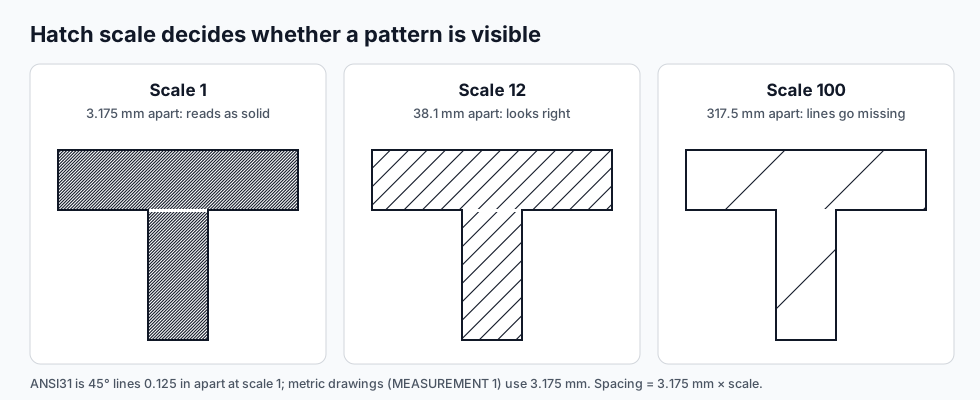
Choosing the hatch scale
ANSI31's lines are 0.125 in apart at scale 1. In a metric drawing, AutoCAD's acadiso.pat and CADCraft both use 3.175 mm instead. So the spacing on the drawing is:
spacing = 3.175 mm × scale (metric) or 0.125 in × scale (imperial)
A useful rule: the pattern should look right on paper. For a 1:50 plan, if you want lines about 1 mm apart on the sheet, you need 50 mm in the model, so a scale around 50 ÷ 3.175 ≈ 16. The CADCraft sample apartment uses scale 12 on its 200 mm walls.
Annotative hatches (or the hatch scale relative to paper space option in AutoCAD) can do this sum for you, but the arithmetic above is all that's going on.
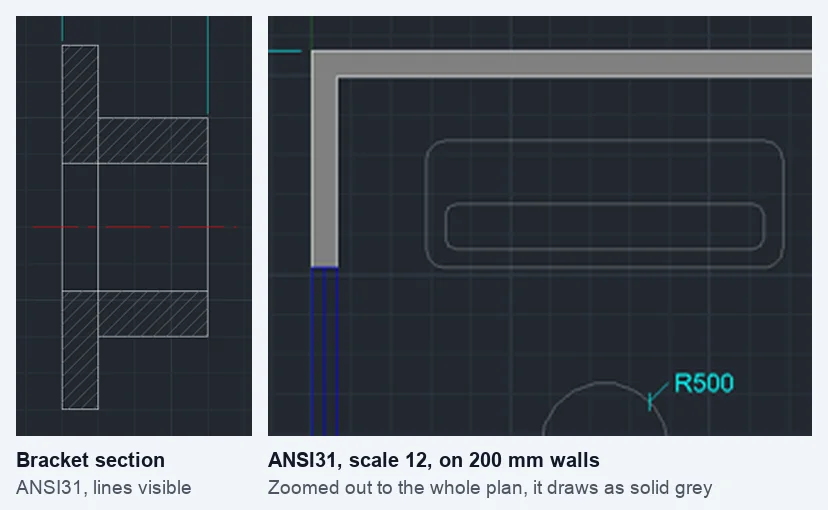
Right: zoomed out to the whole 12 m plan, the lines are closer than a pixel, so CADCraft draws the hatch as solid grey. Zoom in and the lines come back. Screenshots from the CADCraft project (MIT/Apache-2.0).
Islands: holes inside the boundary
When the area you pick contains other closed shapes (text, a hole, a smaller part), the island detection style decides what gets filled:
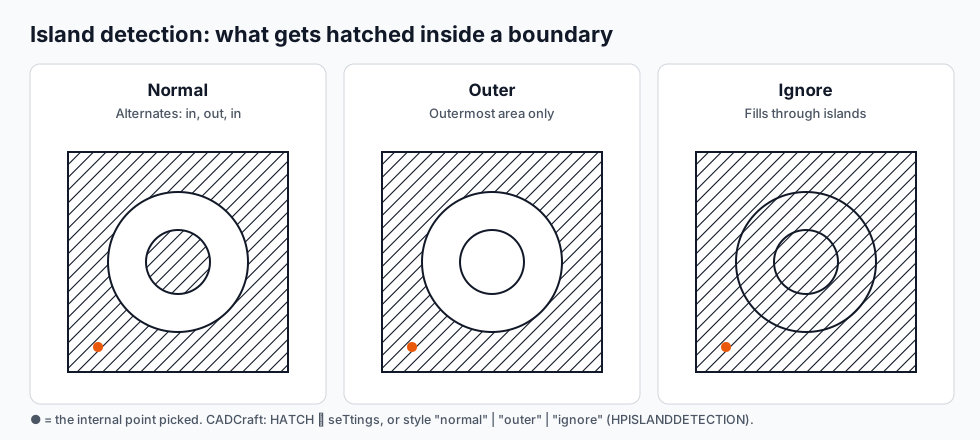
- Normal (the default): alternates: filled, empty, filled, from the outside in.
- Outer: fills only the outermost area.
- Ignore: fills through everything.
In AutoCAD the choice is in the ribbon's Options panel (and HPISLANDDETECTION). In CADCraft it's under seTtings at the HATCH prompt, or the same system variable.
Gradients and solid fills
GD (GRADIENT) fills with two colours blended: LINEAR, CYLINDER, CURVED, SPHERICAL and HEMISPHERICAL, each with an inverted (INV…) version. For a flat colour, use HATCH with the SOLID pattern. New hatches are placed behind their boundary, so the outline stays visible.
Editing a hatch
- Change pattern, scale or angle: select the hatch and use the Properties palette, or
HE(HATCHEDIT). - Move the boundary: hatches are associative by default (
HPASSOC= 1): stretch the boundary with grips and the hatch follows. If you delete the boundary, the hatch stays but stops following. - Add or remove areas: HATCHEDIT's add-points and remove-boundary options, rather than deleting and starting again.
- Pattern lines don't line up between areas: set the hatch origin (
Originat the prompt) to a shared corner.
Fixing hatches that fail
"Valid hatch boundary not found." The area isn't closed. Zoom in on every corner: a line that stops 0.1 mm short is enough. Fix it with F (FILLET, radius 0) or EX (EXTEND), or set HPGAPTOL to the largest gap you'll accept (it's 0 by default) and pick again. In CADCraft, "No closed boundary objects selected." means the objects you selected with S aren't closed.
The hatch looks solid. Scale too small (see above), or you're simply zoomed out. Zoom in before changing anything.
The hatch is empty or shows a few lines. Scale too large. Divide it by 10 and try again.
The hatch went everywhere. The point you picked was inside a bigger area than you thought, often because of a gap. Undo, close the gap, pick again.
The hatch is slow or huge. A tiny scale on a big area makes millions of lines. AutoCAD caps this with HPMAXLINES; CADCraft has the same kind of limit. Raise the scale.
The hatch hides other objects. Change its draw order: DRAWORDER ▸ Send to Back.
FAQ
Why does AutoCAD say “Valid hatch boundary not found”?
The area you clicked isn’t fully closed: two lines don’t quite meet, or the boundary runs off screen. Zoom in on the corners and fix the gap with FILLET (radius 0) or EXTEND, or set HPGAPTOL to the size of the gap so HATCH closes it for you.
Why does my hatch look solid?
The pattern scale is too small for the drawing’s units. ANSI31 at scale 1 has lines 3.175 mm apart, which turns into a grey blur in a building plan. Raise the scale, for example to 10–50 for a 1:50 plan in millimetres.
Why is my hatch not showing at all?
The scale is too large, so the lines are farther apart than the area is wide; or the hatch is on a layer that’s off or frozen; or FILL is off. Try a smaller scale first.
What is the default hatch pattern in AutoCAD?
ANSI31: 45° lines, the classic section hatch. In CADCraft the default is also ANSI31, at scale 1 and angle 0 (the HPNAME, HPSCALE and HPANG settings).
Related
- How to draw a floor plan in AutoCAD: wall hatching in context
- AutoCAD layers: Off vs Freeze vs Lock
- AutoCAD commands cheat sheet