How to Draw a Floor Plan in AutoCAD, Step by Step
Draw a floor plan in AutoCAD from scratch: units, layers, walls with RECTANG and OFFSET, door and window openings, door swings, wall hatch, room names, dimensions and a 1:50 sheet. Works the same in the free CADCraft.
 CADCraft AI Editorial
Short answer: set the units to millimetres (or inches) and draw everything 1:1. Make layers for walls, doors, windows, hatch, text and dimensions. Draw the outside of the building with RECTANG, then OFFSET it inward by the wall thickness. Add partitions, cut openings, then place doors (LINE + ARC) and windows. Finish with a wall hatch, room names (MTEXT), dimensions (DIMLINEAR + DIMCONTINUE) and a layout viewport at 1:50.
Every command below also works in the free CADCraft app, which uses AutoCAD's command names and aliases. The example is CADCraft's own sample apartment (examples/apartment.dxf in its repository), so the coordinates are real.
cadcraft.org is an independent guide, not affiliated with Autodesk. CADCraft is made by the ArtCraft team: see getartcraft.com/apps/cadcraft. CADCraft details were checked against its 0.13.0 source.
1. Set up units and layers
Units. Type UN (UNITS). Set length to Decimal and the insertion scale to Millimeters (or Architectural and Inches for imperial work). Everything you draw from here on is at full size: a 12 m wall is 12000.
Layers. Type LA to open the Layer Properties Manager and create one layer per kind of object. The sample apartment uses these:
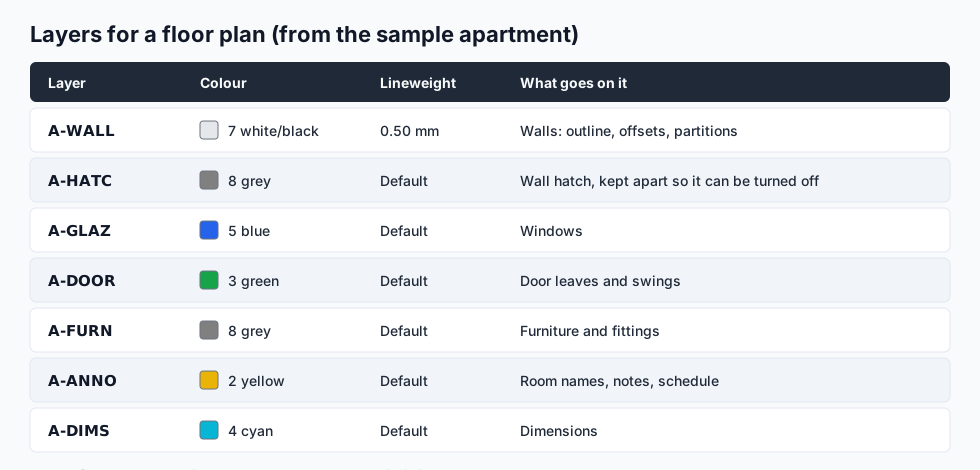
Two details matter later. Give A-WALL a heavy lineweight (0.50 mm here) so walls stand out on paper. And keep the hatch on its own layer, so you can switch it off while you edit. Off vs Freeze vs Lock explains which switch to use.
2. Exterior walls: RECTANG and OFFSET
Make A-WALL current and draw the outside face of the building:
Command: REC
Specify first corner point: 0,0
Specify other corner point: 12000,8000
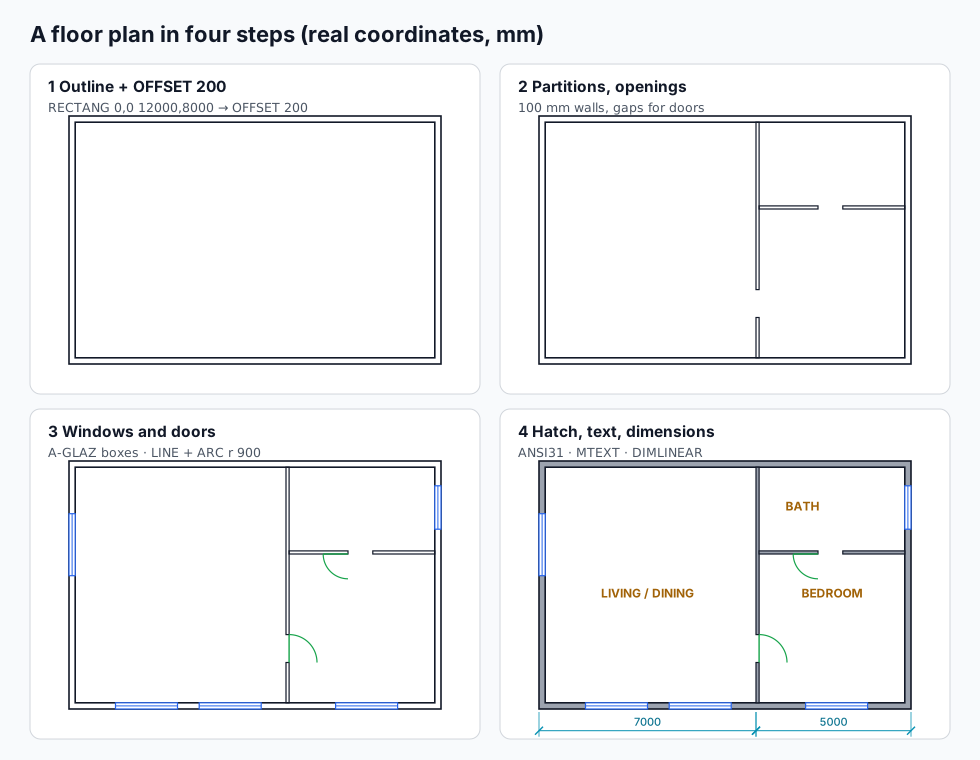
Then offset it inward by the wall thickness, 200 mm:
Command: O
Specify offset distance: 200
Select object to offset: (click the rectangle)
Specify point on side to offset: (click inside it)
You now have the inner face at 200,200 to 11800,7800. The sample apartment is exactly this: two closed polylines, 12000 × 8000 outside and 11600 × 7600 inside.
Not a rectangle? Use PL (PLINE) with typed relative coordinates (@4500,0, @0,-1200 and so on) and close it with C. Then offset as above.
3. Interior walls and openings
Interior partitions are thinner, 100 mm in the sample. The quickest way is a thin closed rectangle per wall segment, which leaves the door opening as a gap:
Command: REC
Specify first corner point: 7000,200
Specify other corner point: 7100,1500
Command: REC
Specify first corner point: 7000,2400
Specify other corner point: 7100,7800
The gap between y = 1500 and y = 2400 is a 900 mm door opening. The bathroom wall is two more rectangles, from 7100,5000 to 9000,5100 and from 9800,5000 to 11800,5100, which leaves an 800 mm opening.
The other common method is LINE + OFFSET 100 for each partition, then TR (TRIM) where walls meet and to cut the openings. It's slower, but it keeps each wall as one piece.
4. Windows and doors
Windows (layer A-GLAZ): a rectangle the depth of the wall with a line along its middle. The sample has 2000 mm windows in the bottom wall, for example from 1500,0 to 3500,200, with the middle line at y = 100.
Doors (layer A-DOOR): a leaf and a swing. For the 900 mm door hinged at 7100,1500:
Command: L
Specify first point: 7100,1500
Specify next point: @0,900
Command: A
Specify start point of arc or [Center]: C
Specify center point of arc: 7100,1500
Specify start point of arc: @900,0
Specify end point of arc or [Angle/chord Length]: A
Specify included angle: 90
If the swing goes the wrong way, MI (MIRROR) it about the wall line. Drawing many doors? Make the first one a block with B (BLOCK) and place the others with I (INSERT), scaling them to each opening width.
5. Hatch the walls, then name the rooms
Wall hatch (layer A-HATC): run H (HATCH), click inside the wall ring between the two outlines, and inside each partition. The sample uses ANSI31 at scale 12; a solid grey fill (SOLID) is just as common. If the hatch comes out solid, sparse or missing, How to hatch in AutoCAD explains the scale.
Room names (layer A-ANNO): T (MTEXT), drag a box in the room and type the name. For the area, run AA (AREA) and click the inside corners of the room. For the living room in the sample (200,200 to 7000,7800) that gives 51,680,000 mm², which is 51.68 m² (divide by 1,000,000).
6. Dimensions
On layer A-DIMS, set a dimension style first (D). For architecture, use architectural ticks, and set the overall scale (DIMSCALE) to the plot scale, for example 50 for a 1:50 sheet, so the text reads at the right size on paper.
Command: DLI
Specify first extension line origin: (endpoint 0,0)
Specify second extension line origin: (endpoint at the partition, 7000,0)
Specify dimension line location: (click below the plan)
Command: DCO
Specify second extension line origin: (endpoint 12000,0)
That's the 7000 + 5000 chain in the sample. Add the overall 12000 below it, and the same on one side (3000 + 5000 and 8000).
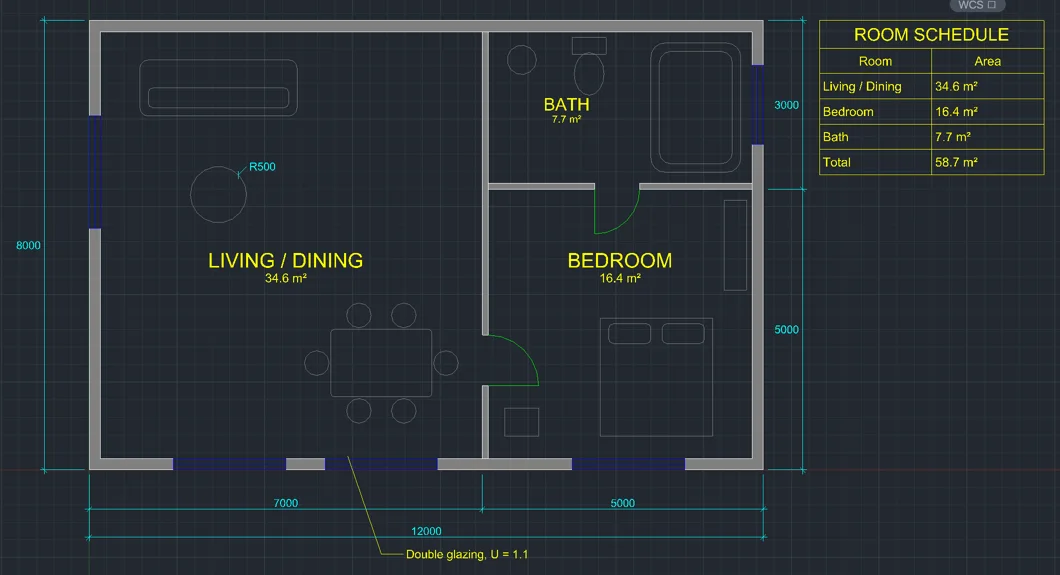
The finished plan in CADCraft, with furniture on A-FURN and a room schedule (TABLE) added. Screenshot from the CADCraft project (MIT/Apache-2.0).
7. Put it on a sheet at 1:50
Don't scale the drawing to fit the paper. Instead:
- Click a layout tab, set the paper in Page Setup (A3 or A1, for example).
- Make a viewport with
MV(MVIEW) and drag a rectangle on the sheet. - Select the viewport and set its scale to 1:50 from the viewport scale list on the status bar.
- Lock the viewport so zooming doesn't change the scale.
- Plot to PDF. DWG to PDF without losing lineweights covers plot styles and lineweights.
How to scale in AutoCAD explains why the geometry stays at 1:1 and only the viewport is scaled.
Common mistakes
- Drawing in the wrong units. If 12000 shows up 12 m wide in one file and 12 km in another, the insertion units differ. Check with
DISTon a known length, and fix it with SCALE and a factor such as1/1000. - Gaps in walls. Turn on object snaps (F3), Endpoint and Intersection, so corners meet exactly. A hatch that refuses to work is usually a tiny gap.
- Everything on layer 0. Move objects with
LAYMCH(Layer Match) or the Properties palette. It's much easier to set layers first. - Text too small or too big on paper. That's annotation scale and
DIMSCALE, not the text height you typed.
FAQ
What scale should I draw a floor plan at in AutoCAD?
Draw at full size, 1:1, in real units: a 12 m wall is 12000 long in a millimetre drawing. The scale (1:50, 1:100, 1/4" = 1′-0″) is set later on the viewport in a layout, not on the geometry.
What is the fastest way to draw walls in AutoCAD?
Draw the outline with RECTANG or PLINE, then OFFSET it by the wall thickness. For interior walls, draw one line, offset it by the partition thickness and trim the junctions. MLINE draws both faces at once but is harder to edit, so most people use offset polylines.
How do I calculate room areas in AutoCAD?
Run AREA (alias AA) and click the inside corners of the room, or choose Object and pick a closed polyline. In a millimetre drawing the result is in mm²: divide by 1,000,000 for m².
Can I draw a floor plan in AutoCAD for free?
You can follow every step in this guide in CADCraft, a free, open-source app that copies AutoCAD’s commands and aliases. The sample apartment used here ships with CADCraft as examples/apartment.dxf.