How to Scale in AutoCAD: Factor, Reference, Units
Scale objects in AutoCAD with SCALE: by a factor, to a known length with Reference, or from mm to inches. Plus what happens to dimensions and text, and why you should scale viewports, not geometry, to fit a sheet.
 CADCraft AI Editorial
Short answer: type SC (SCALE), select the objects, press Enter, pick a base point (the point that stays put), then type a scale factor: 2 doubles, 0.5 halves. To make a length exactly right, type R (Reference) instead of a factor, pick the two ends of the wrong length, and type the length it should be. To convert millimetres to inches, the factor is 1/25.4.
The steps are the same in the free CADCraft app, which copies AutoCAD's command line. Everything below was run there (cadcraft-cli 0.13.0) and matches AutoCAD's behaviour unless a note says otherwise.
cadcraft.org is an independent guide, not affiliated with Autodesk. CADCraft is made by the ArtCraft team: see getartcraft.com/apps/cadcraft.
Scale by a factor
Command: SC
Select objects: (pick the objects) ↵
Specify base point: (pick a point)
Specify scale factor or [Copy/Reference] <1.0000>: 2
- Base point. Everything grows away from, or shrinks toward, this point. Pick a corner or a centre with an object snap, or type
0,0to scale the whole drawing about the origin. - Factor. Above 1 enlarges, below 1 shrinks, and it must be positive. Fractions work:
1/4,1/25.4. You can also drag and click; the factor is then the distance from the base point. - Copy. Type
Cbefore the factor to keep the original and scale a copy. - The default in
<>is the last factor you used, so Enter repeats it.
Scale to a known length (Reference)
This is the option that saves the most time: a part was drawn 37.5 long and should be 50, or an imported plan has no units and you know one wall is 4,200 mm.
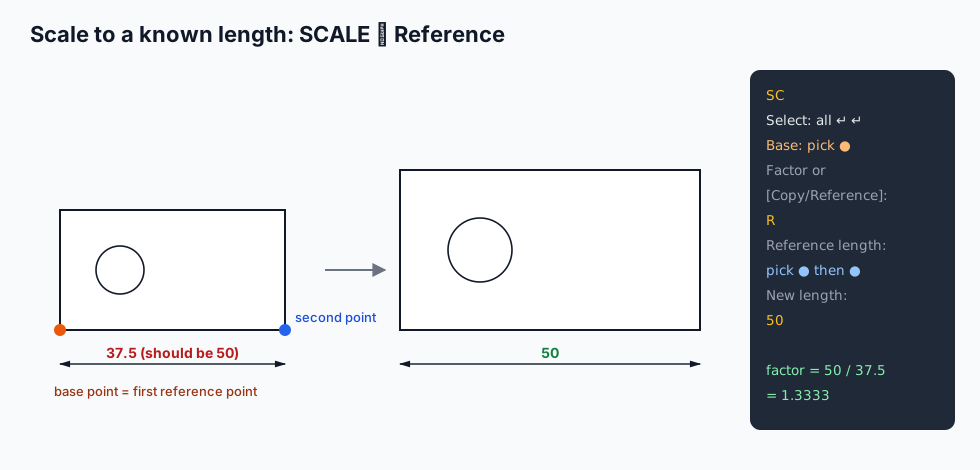
Command: SC
Select objects: ALL ↵ ↵
Specify base point: (pick the left end of the edge)
Specify scale factor or [Copy/Reference] <1.0000>: R
Specify reference length <1>: (pick the left end again) (pick the right end)
Specify new length: 50
Picking the base point again as the first reference point is the trick: the edge then keeps its left end where it was. You can also type the reference length (37.5) instead of picking it.
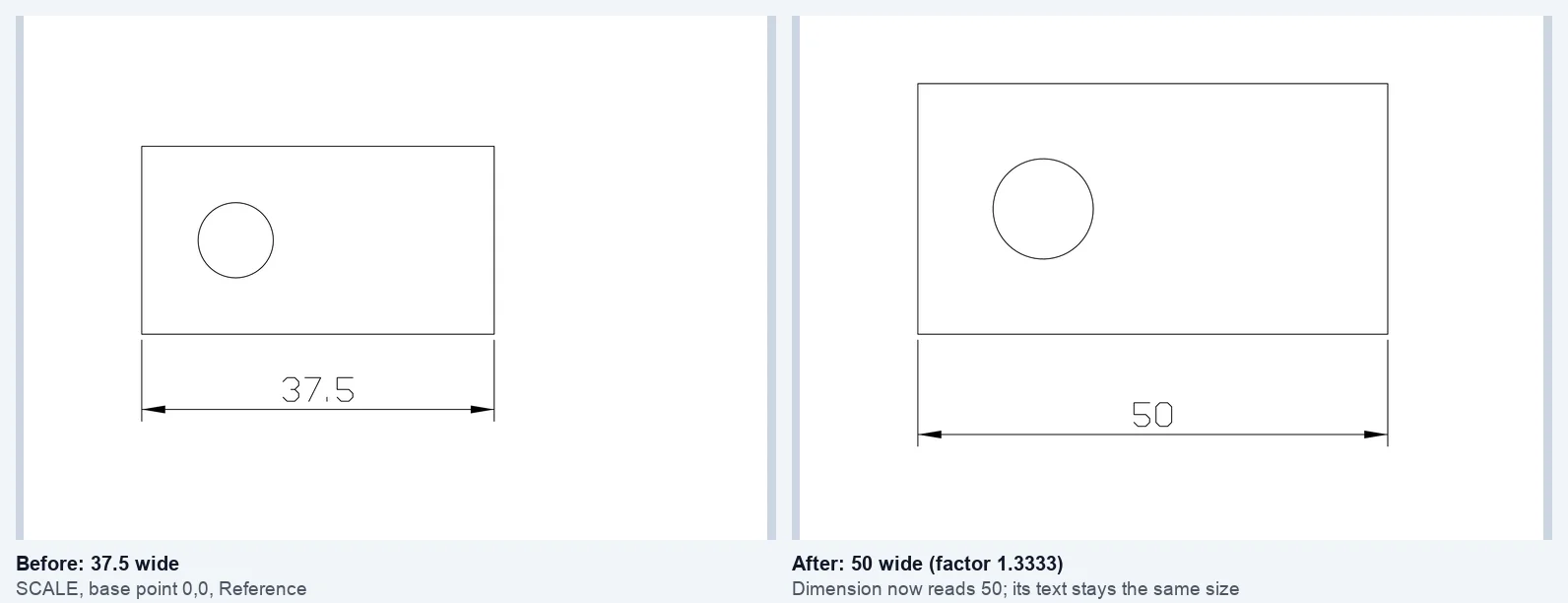
Our test in CADCraft: the rectangle went from 37.5 × 20 to 50 × 26.6667 and the circle's radius from 4 to 5.3333. SCALE is uniform, so the height grew too. The dimension now reads 50, but its text and arrows are the same size.
CADCraft difference: at "Specify new length", AutoCAD also offers [Points] to pick the new length as two points anywhere. CADCraft 0.13.0 takes a typed length or one point measured from the base point, but not Points.
Convert units: mm, inches, metres, feet
When a drawing arrives in the wrong units, scale everything about 0,0:
| From → to | Factor |
|---|---|
| Millimetres → inches | 1/25.4 (0.03937) |
| Inches → millimetres | 25.4 |
| Metres → millimetres | 1000 |
| Millimetres → metres | 1/1000 |
| Feet → inches | 12 |
| Centimetres → millimetres | 10 |
Command: SC
Select objects: ALL ↵ ↵
Specify base point: 0,0
Specify scale factor or [Copy/Reference] <1.0000>: 1/25.4
In our test the 37.5 mm edge became 1.4764, which is 37.5 ÷ 25.4. Then run UNITS and set the insertion units to the new unit, so blocks and drawings you insert later come in at the right size.
How do I know which units a drawing is in? Measure something you know (a door is about 900 mm or 36 in wide) with DIST. 900 means millimetres, 0.9 metres, 36 inches.
What scales, and what doesn't
| Object | After SCALE |
|---|---|
| Lines, arcs, polylines | Scale about the base point |
| TEXT and MTEXT | Height scales with the factor |
| Dimensions | Move with the geometry; the value updates (37.5 → 50). Text height and arrows stay as the style says |
| Hatches | Boundary and pattern scale scale together, so the pattern looks the same relative to the area |
| Block references | Their X, Y and Z scales are multiplied by the factor; the block definition is unchanged |
The dimension row surprises people. If the numbers are right but the text is now tiny or huge compared with the drawing, that's an annotation problem: change DIMSCALE in the dimension style (D), or the annotation scale, rather than scaling the dimensions.
Don't scale your drawing to fit the paper
The most common scaling mistake isn't a wrong factor. It's using SCALE at all to make a drawing fit a sheet.
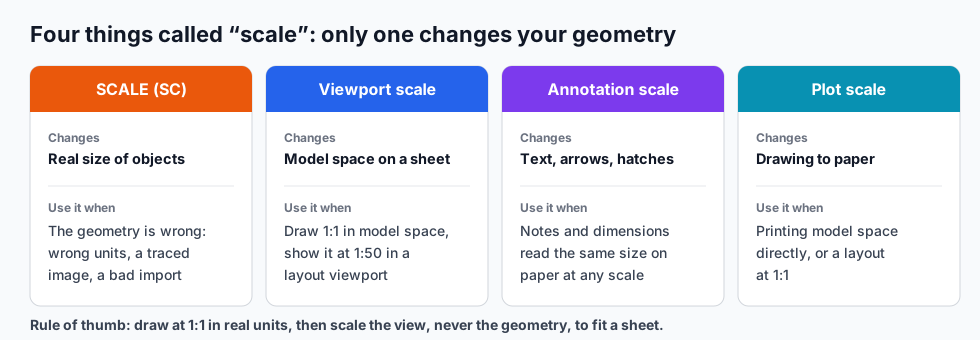
Draw at 1:1 in real units (a 4.2 m wall is 4200 long in a millimetre drawing). Then:
- To print at 1:50, make a layout, add a viewport, and set the viewport scale to 1:50. In AutoCAD and CADCraft the status bar shows the viewport scale list when a viewport is active. In CADCraft's command line you can also run
viewport.set {"scale":"1:50"}on a selected viewport, orZOOMwith1/50XPinside it. - To make text and dimensions read right at that scale, set the annotation scale or
DIMSCALE, not the geometry. - To print model space directly, pick the scale in the Plot dialog. DWG to PDF without losing lineweights walks through it.
If you scale the geometry down to fit, every dimension will report the wrong value and anyone who measures your file gets wrong numbers.
Other ways to resize
- ALIGN (
AL) moves, rotates and, if you answer Yes to "Scale objects based on alignment points?", scales in one go: useful for fitting a traced plan onto a survey. - STRETCH (
S) changes one direction: select with a crossing window and move the corners you caught. - Block references can have different X and Y scales (Properties palette, or
INSERTwith a scale per axis) when you really need non-uniform scaling. - Grips: select objects, click a grip, then press Space to cycle to Scale. Handy for quick visual changes.
Troubleshooting
"Requires a positive number." The factor was zero, negative or not a number. Fractions like 1/2 are fine.
Things moved far away. The base point was far from the objects. Undo (U) and pick a base point on the objects.
Nothing changed size. You probably pressed Enter at the factor prompt with the default <1.0000>.
Linetypes look different after scaling. Dashes are set by LTSCALE and the object's linetype scale, which SCALE doesn't change. Adjust them separately.
Hatch disappeared or looks solid after scaling down a lot. The pattern is now very dense. Edit the hatch and raise its pattern scale.
FAQ
How do I scale an object to a specific length in AutoCAD?
Use SCALE with the Reference option: select the objects, pick a base point, type R, pick the two ends of a length you know (or type its current value), then type the length it should be. AutoCAD scales by new length ÷ reference length.
How do I convert a drawing from millimetres to inches?
Select everything, run SCALE with base point 0,0 and type 1/25.4 as the factor (25.4 for inches to millimetres). Then set the drawing’s units with UNITS so new blocks and dimensions match.
Why didn’t my dimension text get bigger when I scaled?
SCALE changes geometry. A dimension’s value updates to the new length, but its text height and arrow size come from the dimension style. Change DIMSCALE or the annotation scale for that, not the objects.
Can I scale only in X or only in Y?
Not with SCALE: it is always uniform. Make the objects a block and give the block reference different X and Y scales in Properties (or with INSERT), or use STRETCH to change one direction.
Related
- AutoCAD commands cheat sheet: SCALE and the other modify commands
- AutoCAD shortcuts
- DWG to PDF without losing lineweights: plot scale and paper