How to Convert DWG to DXF: Versions & Losses
Convert DWG to DXF for free, one file or a whole folder: which DXF version to choose, what gets lost (fonts, multileaders, proxy objects, dynamic blocks) and how to check the result.
 CADCraft AI Editorial
Short answer: in the free CADCraft desktop app (download), open the DWG with File ▸ Open…, then choose File ▸ Save As… (Ctrl+Shift+S) and save it with a .dxf name. The DXF gets the same version as the DWG. To choose a different version, or to convert a whole folder, run cadcraft-cli run file.dwg --cmd 'saveas {"path":"file.dxf","version":2013}' (Path B). The desktop app opens DWG R13–2018. Keep the original DWG, because the DXF holds only what CADCraft read.
cadcraft.org is an independent guide, not the official site. CADCraft is made by the ArtCraft team: see getartcraft.com/apps/cadcraft. Commands and outputs below were checked with cadcraft-cli 0.8.0.
Why convert at all?
- The other person has no AutoCAD. DXF is documented, so LibreCAD, QCAD, Inkscape, CAM software and GIS tools read it. DWG needs a reverse-engineered library.
- It has to open in a browser. The CADCraft online editor reads DXF only, never DWG.
- A machine is waiting. Laser, plasma and CNC software usually takes DXF. Ask which version first (see the table below).
If the recipient uses AutoCAD and will send the file back, send the DWG instead. DXF vs DWG explains the trade-off.
Path A: one file in the desktop app
- File ▸ Open… and pick the
.dwg. If it won't open, read its version code first: AC1009 or lower is R12 or earlier, which CADCraft doesn't read. How to open a DWG file shows how. - File ▸ Save As… (Ctrl+Shift+S, ⇧⌘S on a Mac), give the file a
.dxfname, and save it next to the original, not over it. - Check the version you got (step 4 of the checks below). A drawing opened from a file keeps that file's version when you save it: a DWG from AutoCAD 2018 or later becomes a 2018 (AC1032) DXF.
File ▸ Default Save Format ▸ Version 2000…2018 looks like the place to change that, but in 0.8.0 it applies only to new drawings that have never been saved. For an opened DWG, choose the version with the CLI command in Path B.
Under the hood, CADCraft has already converted the DWG to DXF to open it (through the open-source acadrust library). Saving writes CADCraft's own DXF.
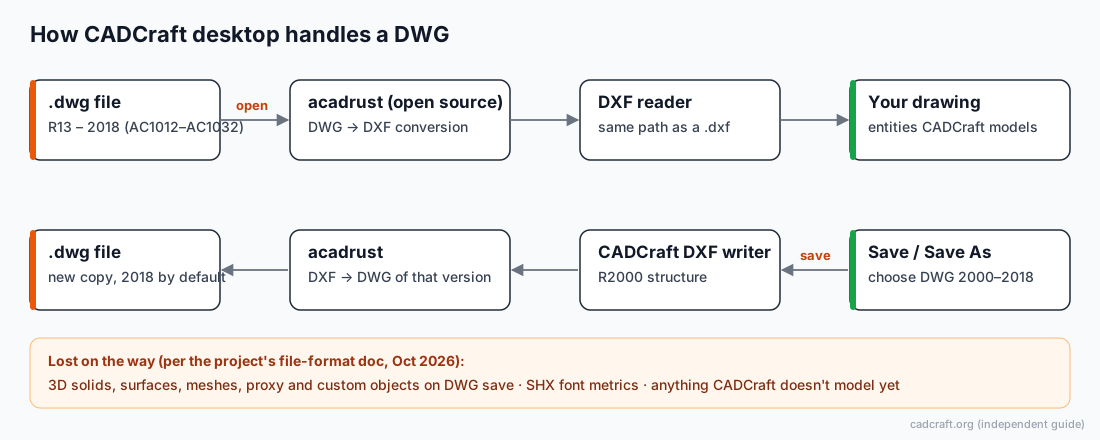
In CADCraft, DWG goes through DXF in both directions, so what DXF can’t hold, the conversion can’t keep.
Path B: a whole folder from the command line
cadcraft-cli ships with the desktop downloads; on macOS it's a separate universal zip on the release page.
The shortest form keeps the drawing's own version. A DWG saved by AutoCAD 2018 or later becomes an AC1032 (2018) DXF:
for f in *.dwg; do cadcraft-cli convert "$f" "${f%.dwg}.dxf"; done
To force a version, open and save in one run:
for f in *.dwg; do
  cadcraft-cli run "$f" --cmd 'saveas {"path":"'"${f%.dwg}"'.dxf","version":2013}'
done
Get-ChildItem *.dwg | ForEach-Object {
  $out = $_.FullName -replace '\.dwg$', '.dxf'
  cadcraft-cli run $_.FullName --cmd ("saveas " + (@{ path = $out; version = 2013 } | ConvertTo-Json -Compress))
}
Use PowerShell 7.3 or later for the second loop. Older versions can strip the double quotes inside the JSON when they pass it to a program.
Each run prints a confirmation such as {"binary":false,"bytes":41298,"path":"a.dxf","version":"2013"}. Add "binary":true for binary DXF. File names with spaces work. We tested with b plan.dwg.
Which DXF version is the safest?
CADCraft writes DXF 2000, 2004, 2007, 2010, 2013 and 2018, ASCII or binary. The content is the same for every version: an R2000 structure with that version's $ACADVER code. Later versions only add optional data. So the version mainly decides who will accept the file. One real difference: from 2007 on, text is stored as UTF-8. Before 2007, non-ASCII characters are written as \U+ escapes, which is valid but less friendly to simple parsers.
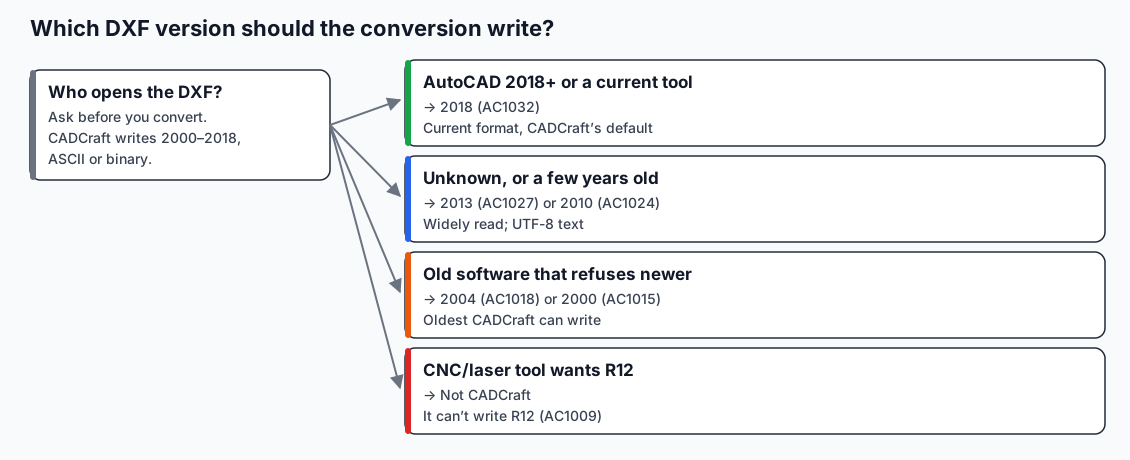
Pick the version for the person or machine that opens the file.
| Recipient | Choose | Why |
|---|---|---|
| AutoCAD 2018 or later, or a current DXF tool | 2018 (AC1032) | Current format, no surprises |
| Unknown, or software a few years old | 2013 (AC1027) or 2010 (AC1024) | Widely read; UTF-8 text |
| Old software that refuses newer files | 2004 (AC1018) or 2000 (AC1015) | Oldest CADCraft writes; 2000 predates true colour and transparency in the format |
| CNC/laser tool that wants R12 | Not CADCraft | It can't write R12. Use a converter that does |
| The CADCraft online editor | Any of the above | It reads R12 (ASCII) and R13–2018, ASCII or binary |
Asking the CLI for R12 fails clearly:
invalid parameters for `saveas`: unknown version `12` (use 2000, 2004, 2007, 2010, 2013, 2018)
ASCII or binary? In our test the DWG was 27,507 bytes, the ASCII DXF 41,298 bytes and the binary DXF 30,472 bytes. Binary saves space, but much CAM and GIS software expects ASCII. Send ASCII unless asked.
What the conversion loses
From the project's file-format document for this release, plus our own round trip:
| Content | What happens in DWG → DXF with CADCraft |
|---|---|
| Fonts | SHX font names are kept (romans.shx survived our DWG → DXF round trip). CADCraft doesn't render SHX itself, so only its own preview looks different |
| Multileaders (MULTILEADER) | Written as native multileaders, but several landings are folded into one, and per-object overrides and annotative scale contexts are dropped |
| Proxy objects, ACIS solids, custom objects | The DWG → DXF step in acadrust may omit them before CADCraft sees them. The project lists this as not measured, so assume they're lost |
| Dynamic blocks | Parameters, visibility states, lookups and stretch actions are kept and written back. In CADCraft you can change visibility states, not distances or positions |
| Polyface and polygon meshes | Flattened to 3D polylines |
| Header variables | All read, 36 written (AutoCAD writes about 280) |
| Viewports | Frozen layers kept. Per-viewport layer colour overrides lost |
| Xdata on tables and blocks, colour books, reactors | Lost through DWG (acadrust) |
| Images | IMAGE and IMAGEDEF kept; CADCraft itself doesn't display the picture |
| Handles | Entity handles kept; other table and object handles renumbered once |
None of this shows up as an error. That's why the next step matters.
Check that the DXF isn't broken
1. Compare the inventory. info prints JSON. Compare entityCount and counts for the two files:
cadcraft-cli info a.dwg  > before.json
cadcraft-cli info a.dxf  > after.json
For our test drawing, both showed 46 entities: Circle 7, Dimension 6, Hatch 4, Line 16, MText 1, Polyline 6, Text 6, and skipped.count was 0. A drop in any count means something was lost.
2. Compare pictures. Render both and compare the files:
cadcraft-cli convert a.dwg a1.png
cadcraft-cli convert a.dxf a2.png
cmp a1.png a2.png && echo identical
Our two 2400×1600 PNGs were byte-identical. If yours differ, view them side by side. Different framing usually means an object was lost or added far from the drawing.
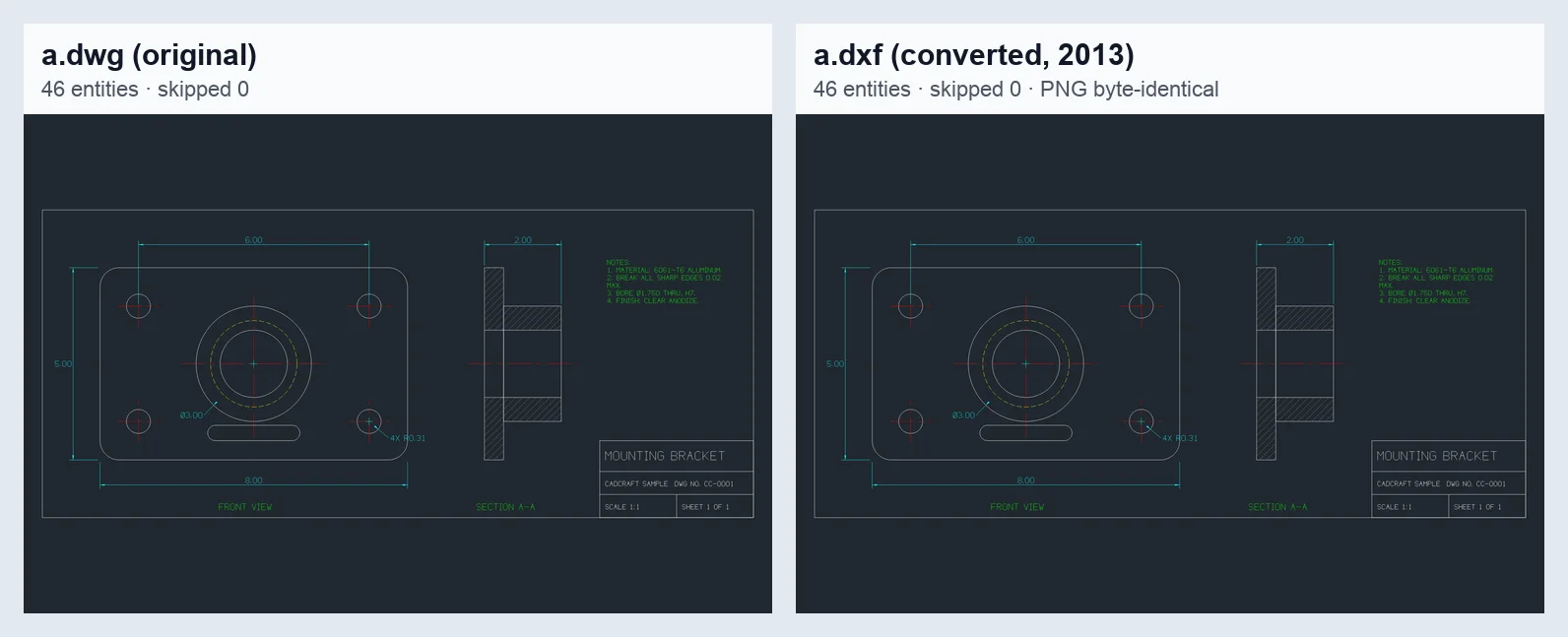
Left: cadcraft-cli convert a.dwg a1.png. Right: the same for the converted DXF. The two PNG files were byte-identical.
3. Audit the DXF.
cadcraft-cli run a.dxf --cmd 'audit {}'
A clean file prints {"errors":0,"fixed":0,"issues":[],"message":"Audit: 0 errors found, 0 fixed."}.
4. Confirm the version the recipient will see: grep -a -o 'AC10[0-9][0-9]' a.dxf | head -1.
5. Open it where it's going. The final test is the recipient's program. If that's a browser, open the DXF in the online editor. How to open a DXF file covers the other ways.
Troubleshooting
DWG: Invalid file format: Invalid AC1009 header. The DWG is R12 or older. CADCraft reads DWG from R13. Convert it to a newer DWG with another tool first.
DWG: file header read failed, returning partial document: IO error: failed to fill whole buffer. The DWG is cut short, usually by an incomplete download or email attachment. Get the file again.
Text in the DXF looks different in CADCraft than in AutoCAD. It's the SHX substitution, not the conversion. Set SETVAR FONTALT followed by a TrueType font name to get closer.
A 10 MB DWG takes minutes. Large DWG files are a known slow spot. Run cadcraft-cli info first to check the file reads at all, or ask the sender to purge unused objects.
FAQ
Which DXF version should I choose when converting from DWG?
The one the recipient’s software asks for. If you don’t know, 2013 or 2010 is a safe middle choice: most current tools read it and nothing older is needed. Choose 2018 when the recipient uses AutoCAD 2018 or later. CADCraft writes DXF 2000–2018 but cannot write R12.
Can I convert DWG to DXF online with CADCraft?
No. The online version at cadcraft.org/online reads DXF only and cannot open DWG. Convert with the free desktop app or its command-line tool, then open the DXF online if you want to keep working in the browser.
Does converting DWG to DXF lose anything?
It can. In CADCraft, polyface meshes become 3D polylines, extra multileader landings are folded into one, and only 36 header variables are written. Proxy objects and 3D solid data may already be dropped when the DWG is opened. Keep the original DWG and compare the two files before you send the DXF.
Is binary DXF better than ASCII DXF?
It is smaller: in our test a 41 KB ASCII DXF was 30 KB as binary. But many CAM, laser and GIS tools expect ASCII. Send ASCII unless the recipient asks for binary.
Related
- DXF vs DWG: which one to send, and why the browser takes DXF
- DWG to PDF without losing lineweights: when the recipient only needs to look
- CAD file formats explained