DXF to SVG or PNG: Clean Images From CAD Files
Convert DXF to SVG or PNG for free, one file or a folder: export versus plot, why yellow lines vanish on white, how to get black lines with lineweights, and how to choose the exact pixel size.
 CADCraft AI Editorial
Short answer: with the free CADCraft command-line tool, cadcraft-cli convert drawing.dxf drawing.svg writes a vector SVG and cadcraft-cli convert drawing.dxf drawing.png a 2400 × 1600 PNG. Both show model space, fitted to the drawing. The PNG has a dark background, like the CADCraft screen. For a white image with black lines and real lineweights, plot it instead: cadcraft-cli run drawing.dxf --cmd 'plot {"device":"CADCraft PNG","paper":"A3","plotStyleTable":"monochrome.ctb","path":"drawing.png"}'.
cadcraft.org is an independent guide, not the official site. CADCraft is made by the ArtCraft team: see getartcraft.com/apps/cadcraft. Every command and output below was run with cadcraft-cli 0.13.0.
Export or plot: two routes, different pictures
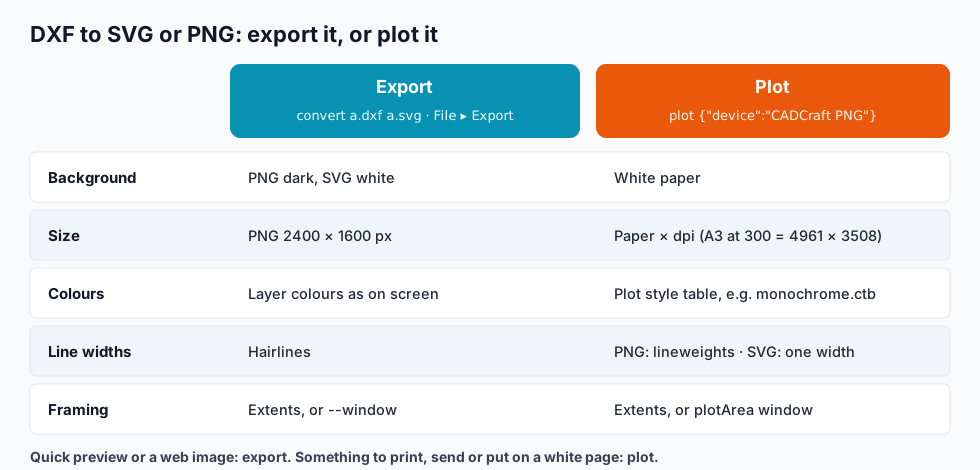
CADCraft makes images two ways, and most surprises come from mixing them up.
- Export (
cadcraft-cli convert, or File ▸ Export… in the app) is a picture of the drawing as you'd see it on screen. Fast, no settings. - Plot (the
CADCraft PNGandCADCraft SVGplotter devices) is the drawing as printed: on white paper of a given size, at a resolution, through a plot style table. It's the same machinery as DWG to PDF.
Here is the same floor plan through each route:
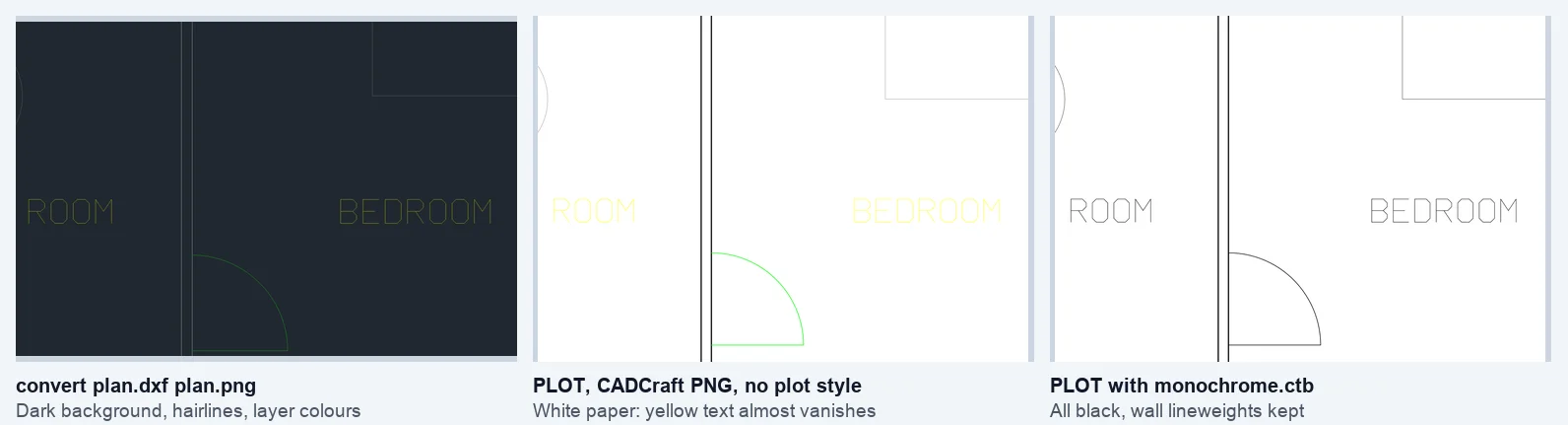
The middle picture is the classic mistake: AutoCAD's yellow (colour 2) and cyan (4) are made for a dark screen and nearly disappear on white. The right one fixes it with one option.
Path A: export (quick images)
One file:
cadcraft-cli convert plan.dxf plan.svg
cadcraft-cli convert plan.dxf plan.png
Each prints wrote plan.svg (21219 bytes). DWG input works the same way (convert plan.dwg plan.svg) because the CLI opens DWG R13–2018.
A whole folder:
for f in *.dxf; do cadcraft-cli convert "$f" "${f%.dxf}.svg"; done
Get-ChildItem *.dxf | ForEach-Object { cadcraft-cli convert $_.FullName ($_.FullName -replace '\.dxf$', '.svg') }
In the app: open the DXF, choose File ▸ Export…, and pick SVG or PNG as the file type (the dialog suggests <drawing>.svg). The online editor opens DXF in a browser if you only need to look first.
What you get, checked in the 0.13.0 source and output:
| Export | SVG | PNG |
|---|---|---|
| Size | width="1600", height in proportion; scales freely | Always 2400 × 1600 pixels |
| Margin | 2% around the extents | 5% around the extents |
| Background | White. Colour 7 (white/black) becomes black | Dark grey #212830, as on screen |
| Lines | <polyline> elements, all the same stroke width | 1-pixel antialiased hairlines; lineweights ignored |
| Text | Drawn as strokes, no <text> elements (not selectable) | Pixels |
| Hatches and solid fills | Filled <path> triangles | Filled |
That makes export good for previews, thumbnails, issue trackers and documentation where a CAD look is fine. If the image is going on a white page or to a client, plot it.
Path B: plot (print-quality images)
The built-in CADCraft PNG device draws on white paper at 300 dpi; CADCraft SVG writes vector SVG. Both take the standard ISO, ANSI and ARCH paper sizes.
cadcraft-cli run plan.dxf --cmd 'plot {"device":"CADCraft PNG","paper":"A3","plotStyleTable":"monochrome.ctb","path":"plan.png"}'
This printed {"bytes":107805,"layout":"Model","pages":1,"path":"plan.png"} and wrote a 4961 × 3508 PNG: A3 landscape at 300 dpi. Without plotStyleTable you get the layer colours on white, which is where yellow text disappears.
Swap the device for SVG:
cadcraft-cli run plan.dxf --cmd 'plot {"device":"CADCraft SVG","paper":"A3","plotStyleTable":"monochrome.ctb","path":"plan.svg"}'
The image below is that SVG file, unchanged:
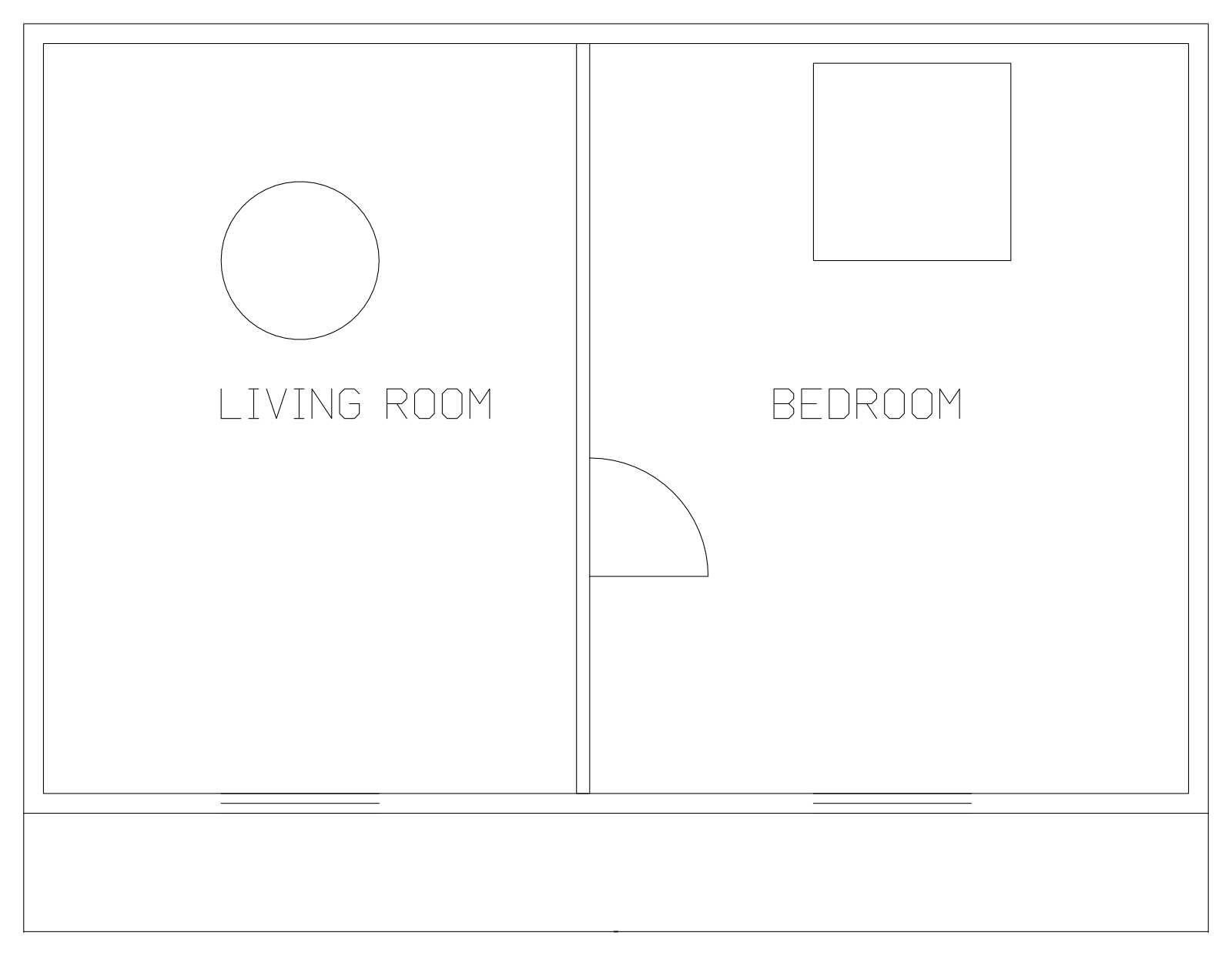
13 KB for the whole plan: 51 polylines and 2 filled paths. Notice all lines have one width: SVG output has no lineweights, even when plotted.
Which plot style? monochrome.ctb prints everything black. grayscale.ctb turns colours into greys. Leave it out to keep colours. To print only part of the drawing, add "plotArea":"window","window":[[x1,y1],[x2,y2]] in drawing units.
Choose the exact pixel size
convert always makes 2400 × 1600. The PNG plotter's size is paper size × resolution, so for an exact size, make a plotter whose paper is the pixel size divided by the dpi. For 1200 × 900 pixels at 96 dpi the paper is 317.5 × 238.125 mm (pixels ÷ 96 × 25.4).
Save this as Web PNG.plotter.json in CADCraft's plotters folder (~/Library/Application Support/CADCraft/plotters on macOS, %APPDATA%\CADCraft\plotters on Windows, ~/.config/cadcraft/plotters on Linux):
{
  "cadcraftPlotter": 1,
  "name": "Web PNG",
  "output": "png",
  "resolution": 96,
  "orientation": "landscape",
  "defaultPaper": "Web 1200x900",
  "papers": [
    {
      "name": "Web 1200x900",
      "width": 238.125,
      "height": 317.5,
      "margins": [0, 0, 0, 0]
    }
  ]
}
Paper sizes are written portrait (width smaller than height); "orientation":"landscape" turns it. Then:
cadcraft-cli run plan.dxf --cmd 'plot {"device":"Web PNG","plotStyleTable":"monochrome.ctb","path":"plan.png"}'
We got exactly 1200 × 900. Passing "resolution" or a width/height to plot alone does not change the size: the device decides. File ▸ Plotter Manager… in the app creates the same device without editing JSON.
Troubleshooting
unsupported file type jpg``. CADCraft writes PNG, SVG and PDF (plus DXF and DWG). Convert the PNG to JPG afterwards if you must; PNG is sharper for line art.
The image is mostly empty with the drawing as a dot. Something lies far from the drawing and stretches the extents. Frame what you want: cadcraft-cli convert plan.dxf plan.png --window 0,0,400,300 (drawing units, lower-left corner first). A reversed window fails with --window: need x0 < x1 and y0 < y1 (lower-left corner first).
Text looks different from AutoCAD. CADCraft doesn't read SHX fonts; it uses its own stroke font. Set FONTALT to a TrueType font (environment variable CADCRAFT_FONTALT) for closer results, as covered in how to open a DXF file.
N entities not drawn. The converter warns when the file holds objects it keeps but can't draw (listed by type). They're missing from the image, not from the DXF.
The SVG is huge. Dense hatches become many filled triangles. Turn the hatch layer off before exporting, or plot to PNG.
FAQ
How do I convert DXF to SVG for free?
Run cadcraft-cli convert drawing.dxf drawing.svg, or open the DXF in the CADCraft desktop app and use File ▸ Export… with an .svg name. Both write a vector SVG of model space on a white background, fitted to the drawing extents.
Why is my exported PNG black?
cadcraft-cli convert draws PNGs like the CADCraft screen: a dark background with the drawing’s layer colours. For a white image, plot instead: plot to the CADCraft PNG device, adding monochrome.ctb if you want black lines.
Does the SVG keep lineweights and text?
No to both. Every line in a CADCraft SVG has the same stroke width, and text is drawn as line strokes, not SVG text elements, so it can’t be selected or searched. For lineweights, plot to PNG or PDF. For searchable text, plot to PDF.
Can I convert DXF to JPG?
Not directly: CADCraft writes PNG, SVG and PDF, and asking for .jpg fails with “unsupported file type `jpg`”. Make a PNG and convert it with any image tool. PNG is the better format for line drawings anyway.
Related
- DWG to PDF without losing lineweights: the same plot settings, for PDF
- How to open a DXF file
- CAD file formats explained