Free Online CAD Software: What Runs in a Browser in 2026
Free online CAD compared by job: in-browser CAD that keeps files on your computer vs cloud CAD that stores them on a server. CADCraft online, Onshape Free, Tinkercad, AutoCAD Web and free viewers, with the limits of each.
 CADCraft AI Editorial
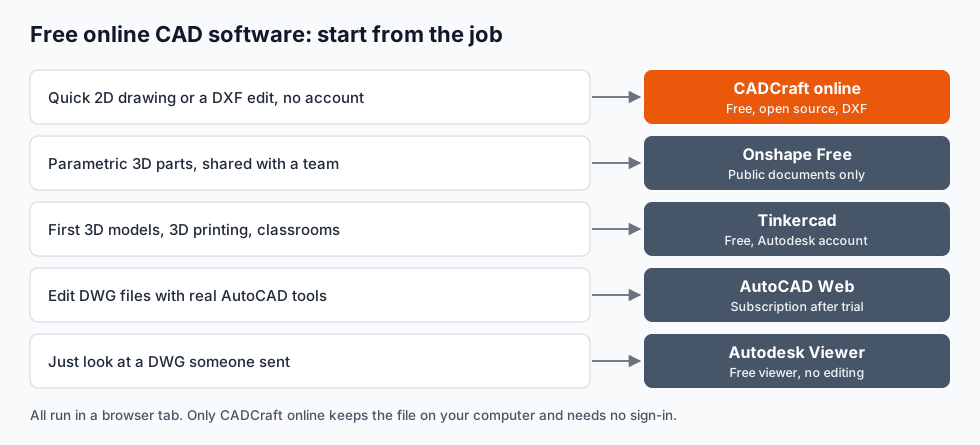
Short answer: "online CAD" covers two different things. In-browser CAD downloads the program into the tab and runs it on your computer, so your file never leaves it. Cloud CAD keeps your model on the vendor's servers and streams the view to you. Pick by the job:
- Quick 2D drawing or a DXF edit, without an account: CADCraft online.
- Parametric 3D parts, shared with a team: Onshape (the free plan makes documents public).
- Your first 3D models, 3D printing, a classroom: Tinkercad.
- Editing DWG with real AutoCAD tools: AutoCAD Web, which needs a subscription after the trial.
- Only looking at a DWG: Autodesk Viewer or another free viewer.
cadcraft.org is an independent guide, not the official site. CADCraft is the ArtCraft team's open-source CAD program (getartcraft.com/apps/cadcraft). CADCraft details were checked against its 0.13.0 source; plans for the other tools are as of October 2026, so check their pricing pages before relying on them.
In-browser vs cloud: the difference that matters
Both kinds open in a browser tab, so they look the same. Where the work happens decides almost everything else: privacy, accounts, offline use, and how big a drawing you can open.
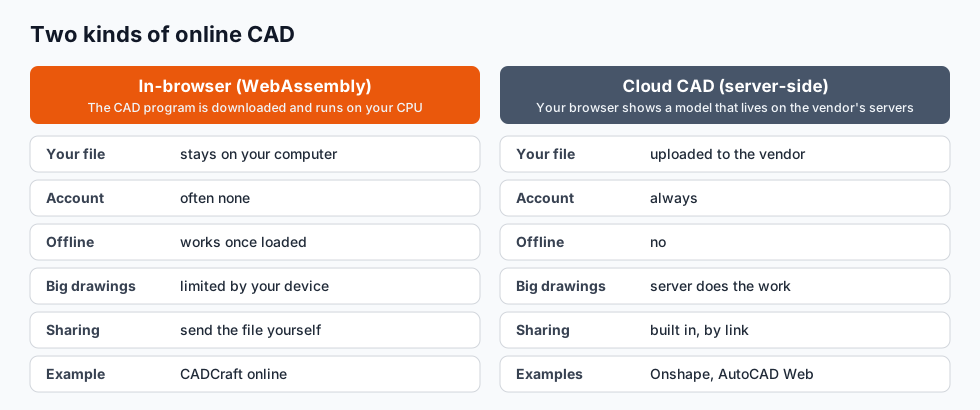
In-browser (WebAssembly). The CAD program is compiled to WebAssembly and downloaded once. Opening a file reads it from your disk into the tab, and saving downloads a new file. Nothing has to be uploaded, so no account is needed. The flip side: you share files the old way, by sending them, and a huge drawing is limited by your computer's memory.
Cloud CAD. The model lives on the vendor's servers. You sign in, upload or create files there, and collaborate by sharing a link. That's very convenient for teams, and a cheap laptop can open a big model. But it needs a connection, an account, and trust in the vendor's terms, especially on free plans.
Neither is better in general. For a client's drawing under NDA, in-browser is easier to defend. For three engineers working on one assembly, cloud is easier to live with.
The free online CAD tools compared
| Tool | Runs | 2D / 3D | Free plan | Opens DWG | Account |
|---|---|---|---|---|---|
| CADCraft online | In-browser (WASM) | 2D drafting | Free and open source (MIT/Apache-2.0) | No, DXF only | None |
| Onshape Free | Cloud | Parametric 3D + drawings | Non-commercial, documents are public | Import | Required |
| Tinkercad | Cloud | Simple 3D (blocks, 3D printing) | Free | No | Autodesk ID |
| AutoCAD Web | Cloud | 2D DWG editing | Trial, then part of an AutoCAD subscription | Yes | Autodesk ID |
| Autodesk Viewer | Cloud | View and mark up only | Free | Yes (view) | Autodesk ID |
| SketchUp Free | Cloud | 3D modelling | Non-commercial use | No | Trimble ID |
Some notes the table can't hold:
- Onshape is a full parametric 3D CAD system and the strongest free option for mechanical parts. The catch is the free plan: documents are public and the licence is for non-commercial use, so it isn't for paid client work.
- Tinkercad is built for learning. You put boxes, cylinders and holes together, which is great for a first 3D print and quickly limiting for anything with tolerances.
- AutoCAD Web is real AutoCAD editing for DWG in a browser, with a reduced toolset. It's the right answer if the job is "edit this DWG exactly the way AutoCAD would" and someone pays for the subscription.
- Viewers (Autodesk Viewer, ShareCAD and others) are enough when you only need to look, measure and print. See how to open a DWG file for the free routes.
CADCraft online: 2D CAD in a tab, no account
CADCraft online is the same program as the CADCraft desktop app, compiled to WebAssembly. It has the AutoCAD-style command line, object snaps, layers, dimensions, hatches, blocks and paper-space layouts. Open the page and you're drawing in a few seconds; there's no sign-up.
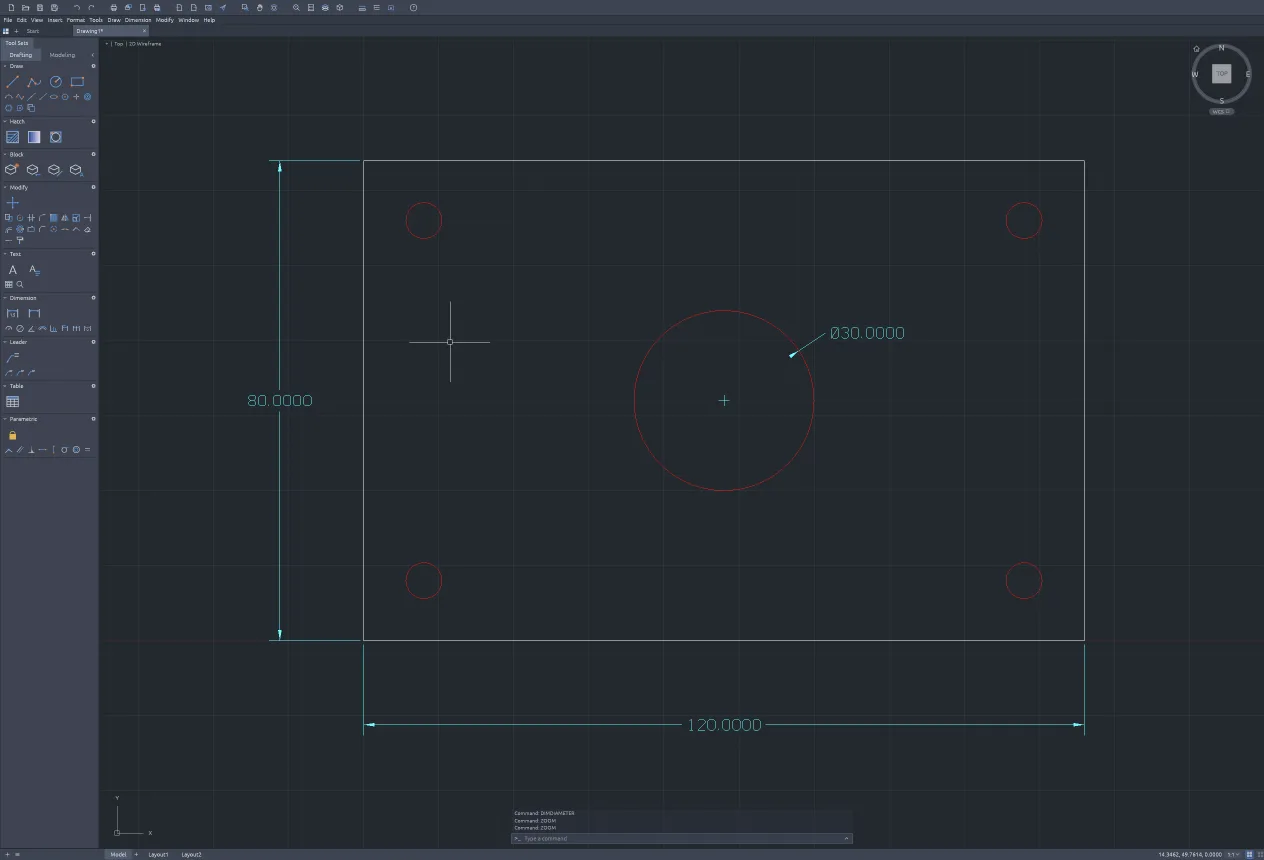
Drawn for this article in CADCraft online by typing commands: rectang 0,0 120,80, circle 60,40 d 30, four corner circles, then dimlinear and dimdiameter.
You can try exactly that. Click in the drawing area and type each line, pressing Enter after it:
rectang 0,0 120,80
circle 60,40 d 30
circle 10,10 d 6
dimlinear 0,0 120,0 60,-14
zoom e
If you know AutoCAD, the commands and aliases will feel familiar (L for LINE, C for CIRCLE, @10<45 for relative polar input). The AutoCAD commands cheat sheet works here too.
What it does well
- Privacy by design. The drawing is processed in your tab. Nothing is uploaded to a server to open or save it.
- No install. Useful on a locked-down work or school computer, a Chromebook, or a borrowed laptop.
- Real file output. Save as DXF, which AutoCAD, LibreCAD, QCAD, FreeCAD and laser-cutter software all read. Export to SVG or PNG for documents and the web.
- Same skills as the desktop app. Anything you learn in the browser carries straight over to the desktop download.
Where it falls short (read this before you start a real job)
- DXF only. The web build doesn't read or write DWG. Convert first (DWG to DXF), or use the desktop app, which opens DWG R13 to 2018.
- No autosave. The desktop app autosaves; the browser version doesn't yet. Save to DXF often. A closed tab loses unsaved work.
- PDF plotting in the browser is unreliable. The project lists a known issue where plotting shows raw PDF bytes. Export SVG or PNG, or plot from the desktop app.
- Pre-alpha software. CADCraft's own roadmap rates it about 38% ready for real work. It's fine for sketches, plates, simple plans and DXF fixes. Check anything critical before you send it.
- 2D only. For 3D parts use Onshape, or a desktop tool like FreeCAD.
Which one should you use?
A drawing for a laser cutter, CNC router or plasma table. These want DXF. Draw it in CADCraft online, check the units, save DXF. No account, no upload.
A floor plan or garden layout. CADCraft online for an accurate 2D plan with dimensions; how to draw a floor plan walks through the method with AutoCAD-style commands.
A part you'll 3D print. Tinkercad if it's simple and you're new to CAD. Onshape if it needs real dimensions and later changes, and you don't mind it being public.
A DWG from an architect that you must edit and send back as DWG. That's the one case where free online tools struggle. AutoCAD Web, or the CADCraft desktop app if a lossy round trip is acceptable. DXF vs DWG explains what gets lost.
Just look at a drawing. A viewer. Don't learn a CAD program to read a dimension.
Tips for working in browser CAD
- Save early, save often. Download the DXF after every important step. Browser tabs crash, and laptops sleep.
- Set units before you draw. A drawing started in inches and sent to a metric shop is the most common mistake. In CADCraft, check
UNITSbefore the first line. - Use a mouse with a wheel. Panning and zooming with a trackpad works, but a wheel mouse is much faster for drafting.
- Keep files on your computer, not in the browser. Browser storage can be cleared at any time. Your Downloads folder can't, unless you clear it.
- Learn ten commands. LINE, CIRCLE, RECTANG, OFFSET, TRIM, MOVE, COPY, DIMLINEAR, LAYER and ZOOM cover most small jobs. The AutoCAD shortcuts list has the aliases.
FAQ
Is there a completely free online CAD program?
Yes. CADCraft online is free and open source and needs no account; it does 2D drafting and reads and writes DXF. Onshape Free does parametric 3D but makes your documents public. Tinkercad is free for simple 3D models but needs an Autodesk account. AutoCAD Web needs a subscription after its trial.
Can I use AutoCAD online for free?
Not for editing beyond the trial. AutoCAD Web is part of an AutoCAD subscription. To only look at a DWG, Autodesk Viewer is free with an Autodesk account. For free 2D editing in a browser, use a DXF-based tool such as CADCraft online and convert DWG to DXF first.
Can online CAD open DWG files?
Cloud tools from Autodesk (AutoCAD Web, Autodesk Viewer) open DWG. CADCraft’s browser version reads DXF only; its desktop app opens DWG R13 to 2018. Save the DWG as DXF, or use the desktop app, if you want to stay free.
Is my drawing private in an online CAD tool?
It depends on where it runs. A WebAssembly tool such as CADCraft online processes the file on your computer and doesn’t upload it. Cloud CAD stores your files on the vendor’s servers, and Onshape’s free plan makes documents public. Read the plan terms before using client work.
Related
- Free AutoCAD alternatives: desktop and online options by job
- Open source CAD compared: FreeCAD, LibreCAD, QCAD, OpenSCAD, SolveSpace and CADCraft
- How to open a DXF file: free viewers and editors, including in the browser